
At the end of this guide, you can put the Impact titles on air in your event's look, and swap in a Graphics package of your own for any of them.
Before you start
- An event with teams and a current match (Teams, players and photos on the Board).
- The operator panel open (Run the show: Preview, TAKE and rundown).
What ships built in
-
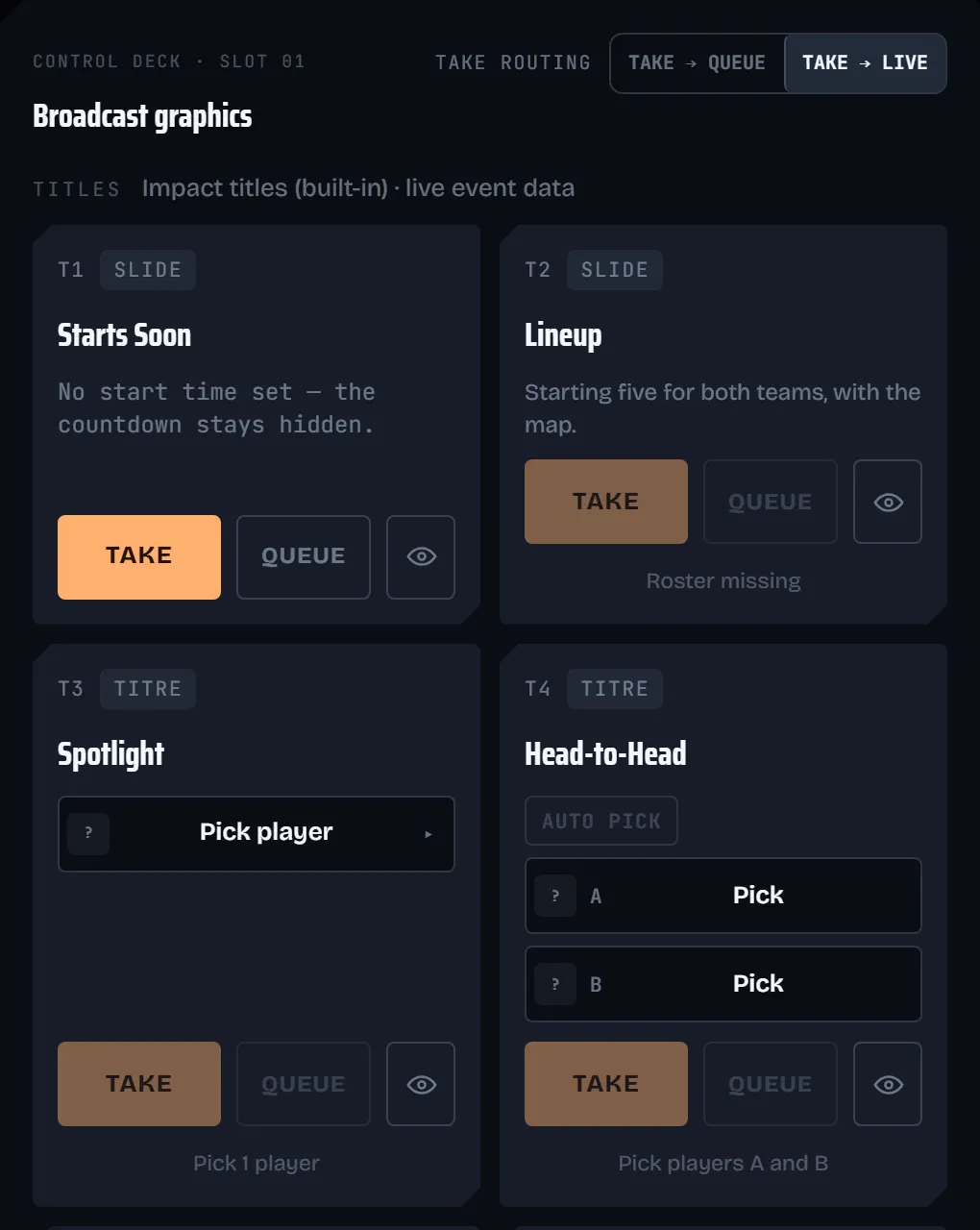
A new event uses the Impact titles (built-in), unless you made one of your Graphics packages the default for new events (below). Open BROADCAST GRAPHICS in the panel (Broadcast Graphics in the collector): the line beside TITLES says which titles the event uses.
-
TITLES holds Starts Soon, Lineup, Spotlight, Head-to-Head, Scoreboard, Player Stats, Team Stats, Round Win, Map Victory, MVP, Schedule and Thanks.
-
LIVE GRAPHICS holds Top Fraggers, Stats Ticker, Economy and History.
-
Full-screen scenes such as STARTS SOON, TECH PAUSE, MAP VETO and THANKS FOR WATCHING are in MATCH CONTROL under SCENES.
Choose the look per event
-
In MATCH CONTROL, choose OVERLAY EDITOR above the live preview.
-
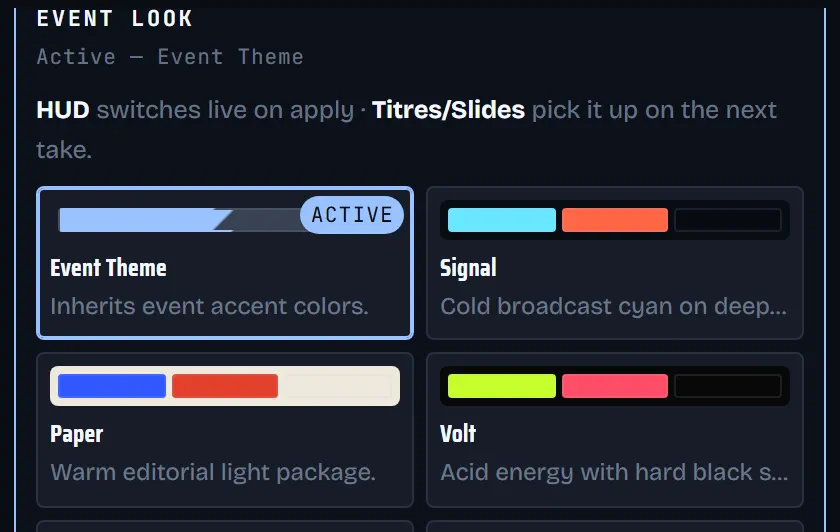
Open EVENT LOOK & PACKAGES and click a look to try it in the editor's preview. Event Theme follows your event's own colours.
-
Choose APPLY TO EVENT. The HUD changes at once; titles and slides pick up the new look on their next take.
-
EVENT COLOURS sets the Accent, Home team and Away team colours the event theme uses.
Preview and TAKE a title
- In BROADCAST GRAPHICS, titles about one player need a subject first: choose Pick player. Head-to-Head needs two players, or AUTO PICK.
- Choose the eye on the card. The title plays inside its card with your event's data, and nowhere else.
- Choose TAKE. The card shows ON AIR until the title hides itself after the MOMENTARY AUTO-HIDE time, or until you choose HIDE.
Use a Graphics package in an event
Your own titles live in Graphics packages: private until you assign them to an event.
-
Open Graphics in the sidebar. Your packages lists them; New package asks for a Package name, then Create package.
-
Build the package's scenes, then choose Make version ready. A ready version stays private.
-
On a ready version, choose Use in an event and pick the Event. For each title role, choose a scene of this version, Keep current assignment or Use Impact titles.
-
Choose Review assignments, then Confirm assignments. The next matching take uses your scene; anything already on air keeps its current version until it leaves.
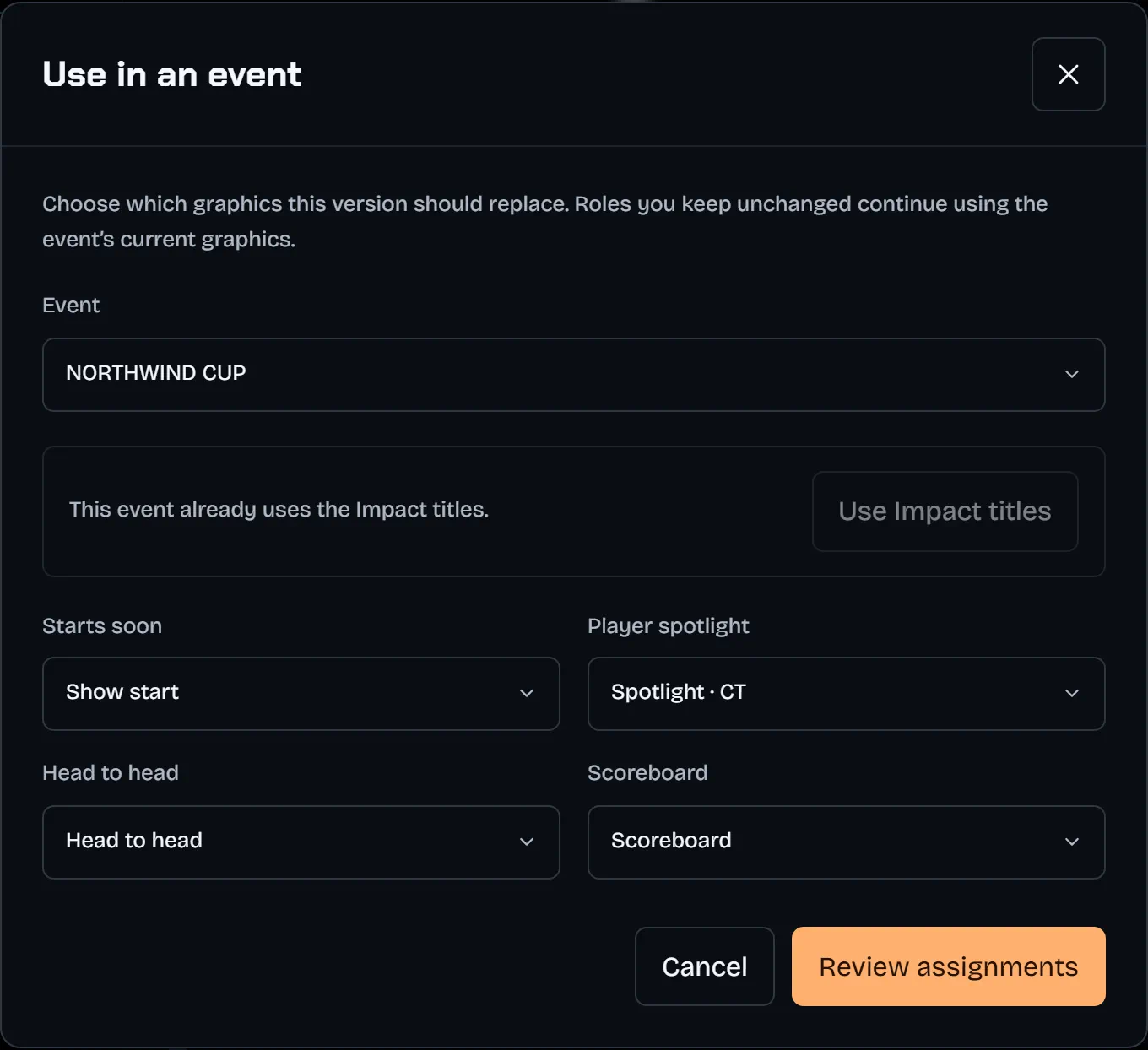
To go back to the Impact titles on one event, open the same dialog, choose Use Impact titles, then Restore Impact titles.
To start every new event with your package, choose Set as default on its ready version and confirm Set as default. The version shows Default for new events and stays the default until you set another one. Titles it does not have use the Impact titles, and events you already have keep their graphics. Remove default undoes it.