
At the end of this guide, every team in your event has the right name, abbreviation, logo, roster and photos, so every graphic shows the right players.
Before you start
- An event, with or without teams. To bring a roster in from a source first, see Import teams and players.
Open the Board
- On the web, choose Open event on the Dashboard. The event opens on Teams & matches: its Board.
- In the collector, open Go Live and the Setup tab, then Teams & matches.
- Switch between Board (the whole event) and List (teams and matches in rows) at the top.
Add or edit a team
-
Choose Add to event, then New team. To reuse a team you saved before, choose Team library instead.
-
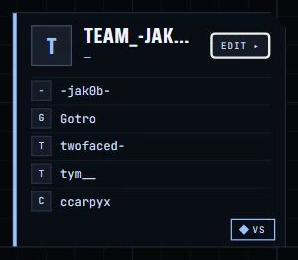
To edit a team, hover its card and choose EDIT ▸, or choose Edit team in List.
-
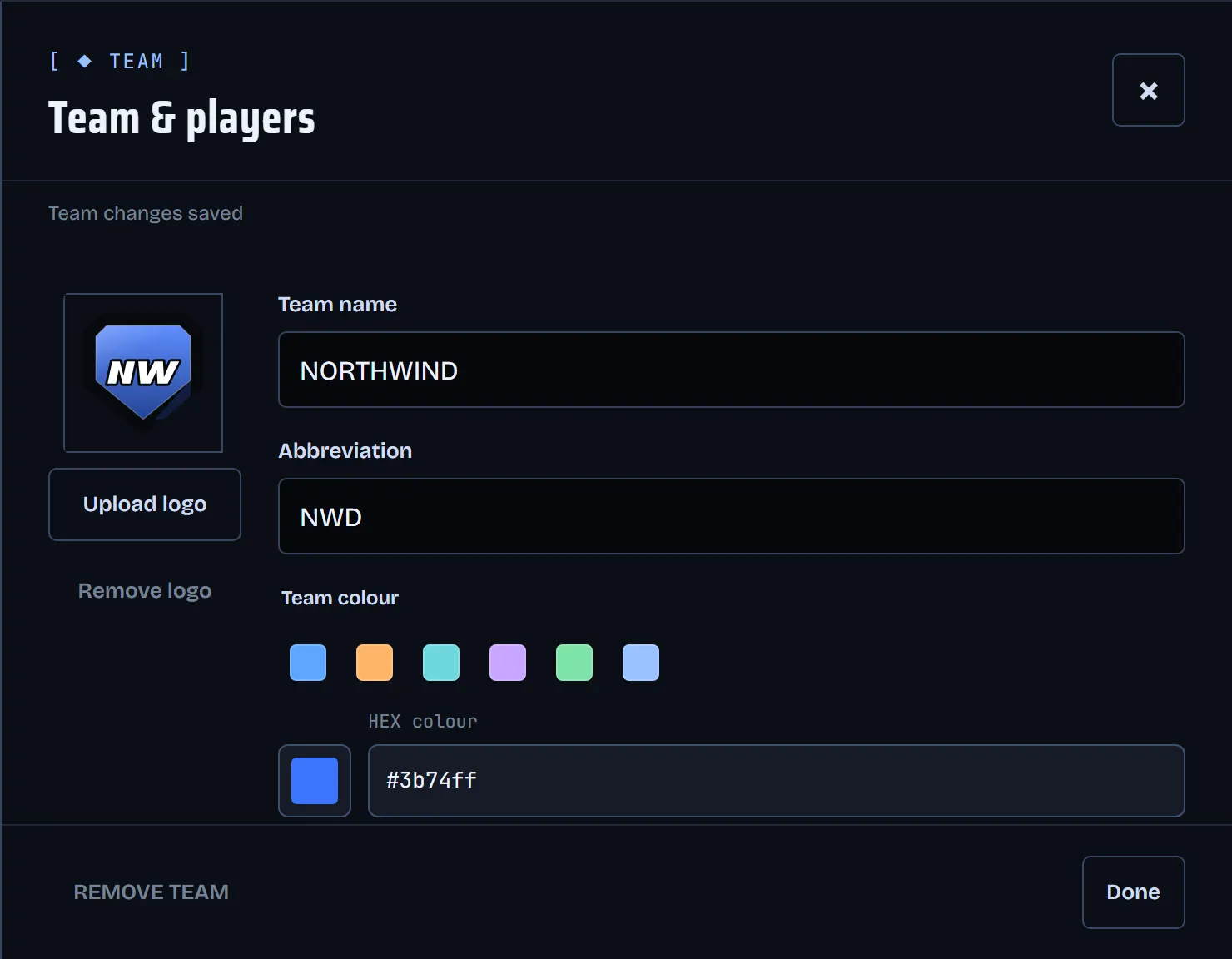
In Team & players, set the Team name, the Abbreviation (up to four letters) and the Team colour. Changes save as you go and the panel says Team changes saved.
Rosters and nicknames
-
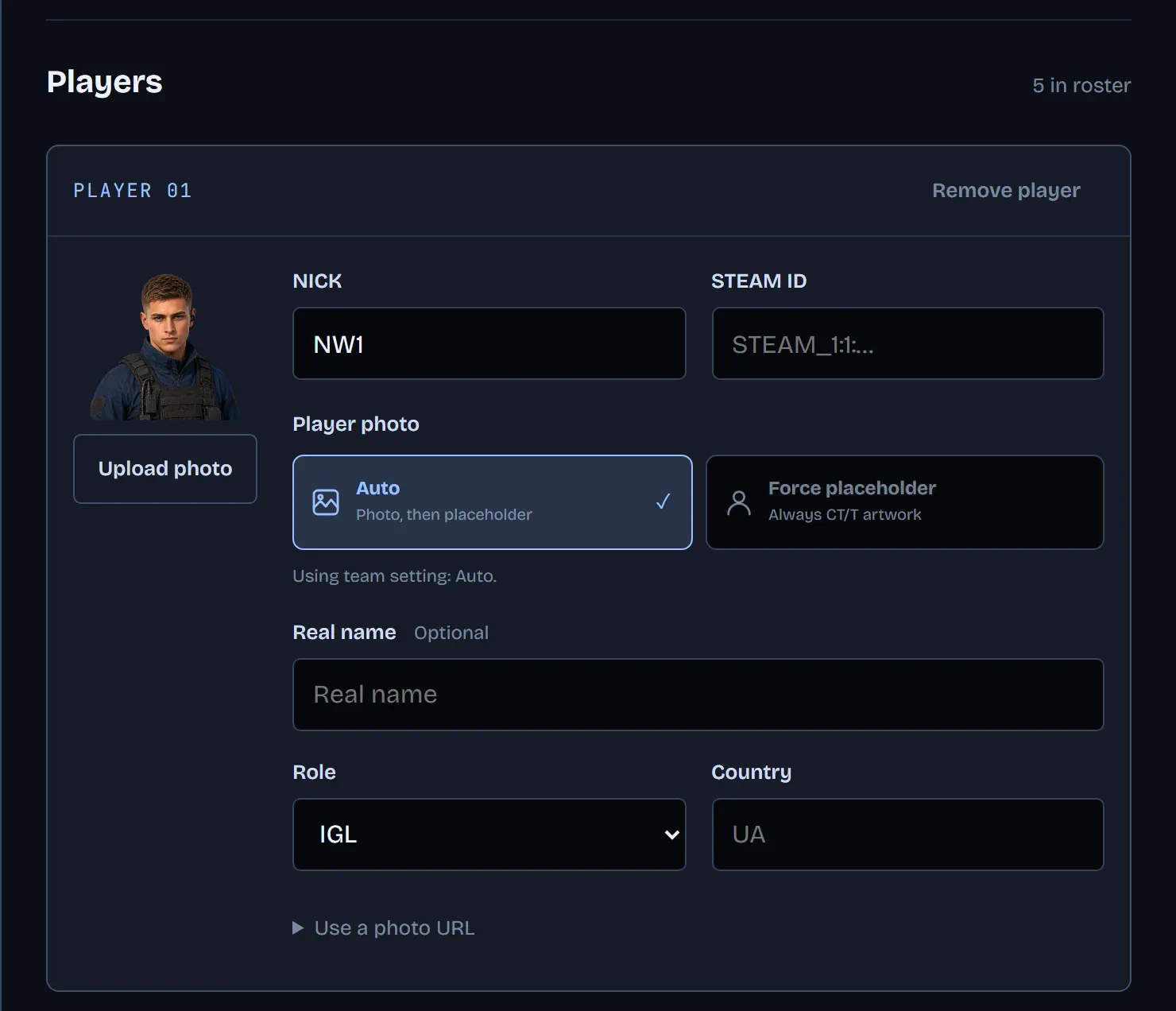
Under Players, each player has NICK, STEAM ID, Real name, Role and Country.
-
Type the nickname exactly as it should appear on air. Add the Steam ID too: live CS2 data is matched to your roster by Steam ID first, then by nickname.
-
+ ADD PLAYER adds a row; Remove player takes one out of this event's roster.
A team you add from the library is copied into the event, so edit the event's copy for this show.
Logos and photos
- Upload logo sets the team logo from a PNG or JPEG file of up to 5 MB. To paste an image address instead, click the logo on the web; in the collector, expand Use a logo URL.
- Each player has Upload photo; Remove photo clears it.
- Team player photos decides what the overlay shows: Auto uses each player's photo and falls back to the side's placeholder art, Force placeholder always shows the CT or T artwork.
Fix a mismatch
When the names CS2 reports do not match your roster:
- In the operator panel, MATCH CONTROL shows Roster setup needs attention with the players that do not match. Choose Edit team rosters to fix them.
- On the Board, open Detected in CS2. It lists the players CS2 reports for the current match as Linked, Unlinked or Conflict.
- For an unlinked player, choose Link player, pick the Match team and the Existing player, then Confirm link. The Steam ID is saved on that roster row.