
At the end of this guide, you can check any graphic privately, put it on air with TAKE, take it off again, and follow the rundown by hand or with Autopilot.
Before you start
- An event with teams and a current match, and live data from the collector.
- The overlay in OBS (Add the overlay to OBS). Keep the OBS program in view while you work.
- Autopilot is part of the Studio plan; Account → Billing → Usage shows whether plan limits are enforced.
Open live controls
-
On the web, choose OPEN LIVE CONTROLS on the event's pages, Live controls on the Board, or Operator Panel in the sidebar.
-
In the collector, choose Go Live in the rail. It opens Match Control.
-
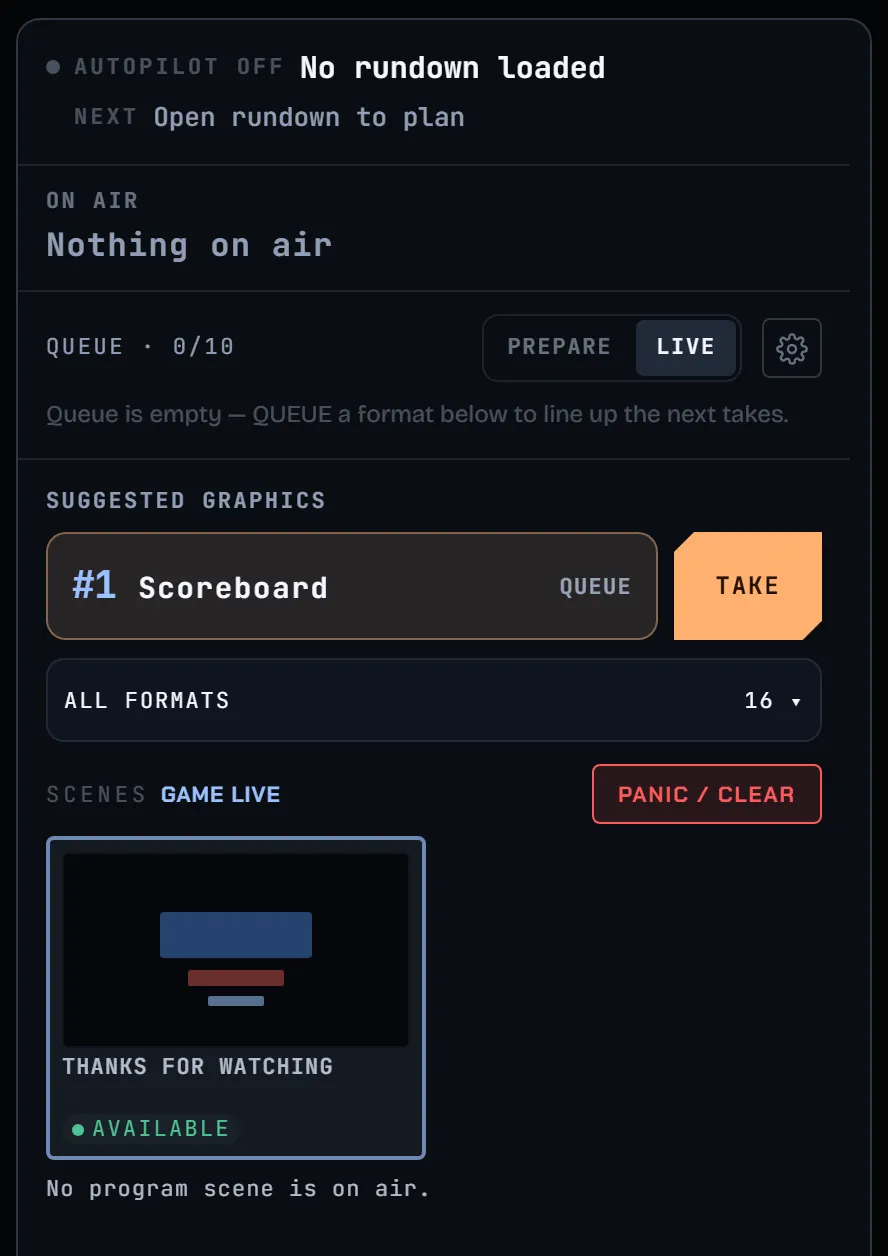
Start in MATCH CONTROL for live match controls. Use BROADCAST GRAPHICS to browse graphic cards and RUNDOWN to follow the running order.
Preview is private
-
In BROADCAST GRAPHICS, choose the eye on a graphic card. Its preview opens inside that card, using your event's data. Choose the same eye again to close it; you stay in the graphics deck.
-
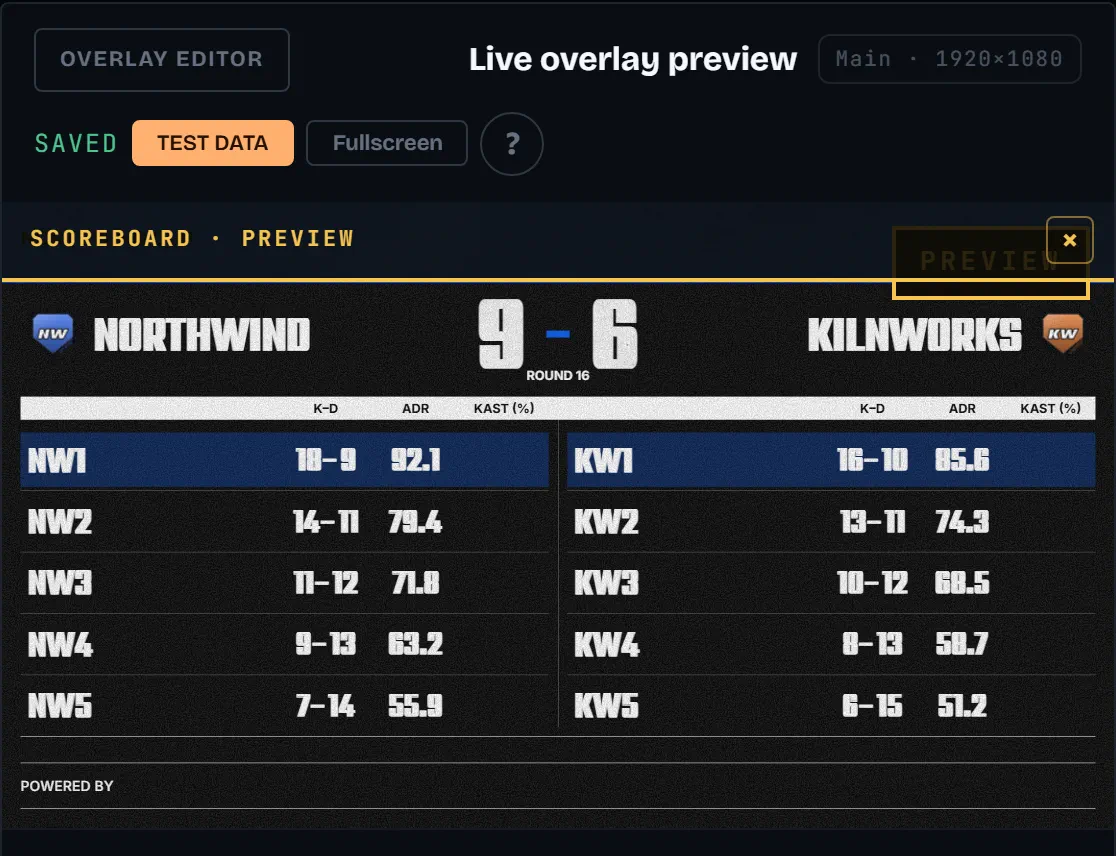
In MATCH CONTROL, choose ALL FORMATS, then the eye on a card. The separate Live overlay preview shows that graphic with a PREVIEW banner. Use the × in the banner to exit.
-
Neither preview puts the graphic on air in OBS. Use previews to catch a wrong player, an old score or a missing photo before choosing TAKE.
TAKE puts it on air
- Choose TAKE on a card or on a suggested graphic. With TAKE → LIVE, the default routing, it goes on air at once. With TAKE → QUEUE, the button reads QUEUE and the graphic lines up in the queue instead.
- The panel shows ON AIR with the graphic's name and the time left.
- Take it off with HIDE, or BACK TO GAME for a full-screen scene. PANIC / CLEAR clears every graphic, the ticker and the queue at once.
- MOMENTARY AUTO-HIDE sets how long the next momentary graphic stays on air: OFF, 8s, 12s or 20s. It does not change the current graphic; Starts Soon and the ticker do not use this timer.
Follow NOW and NEXT
-
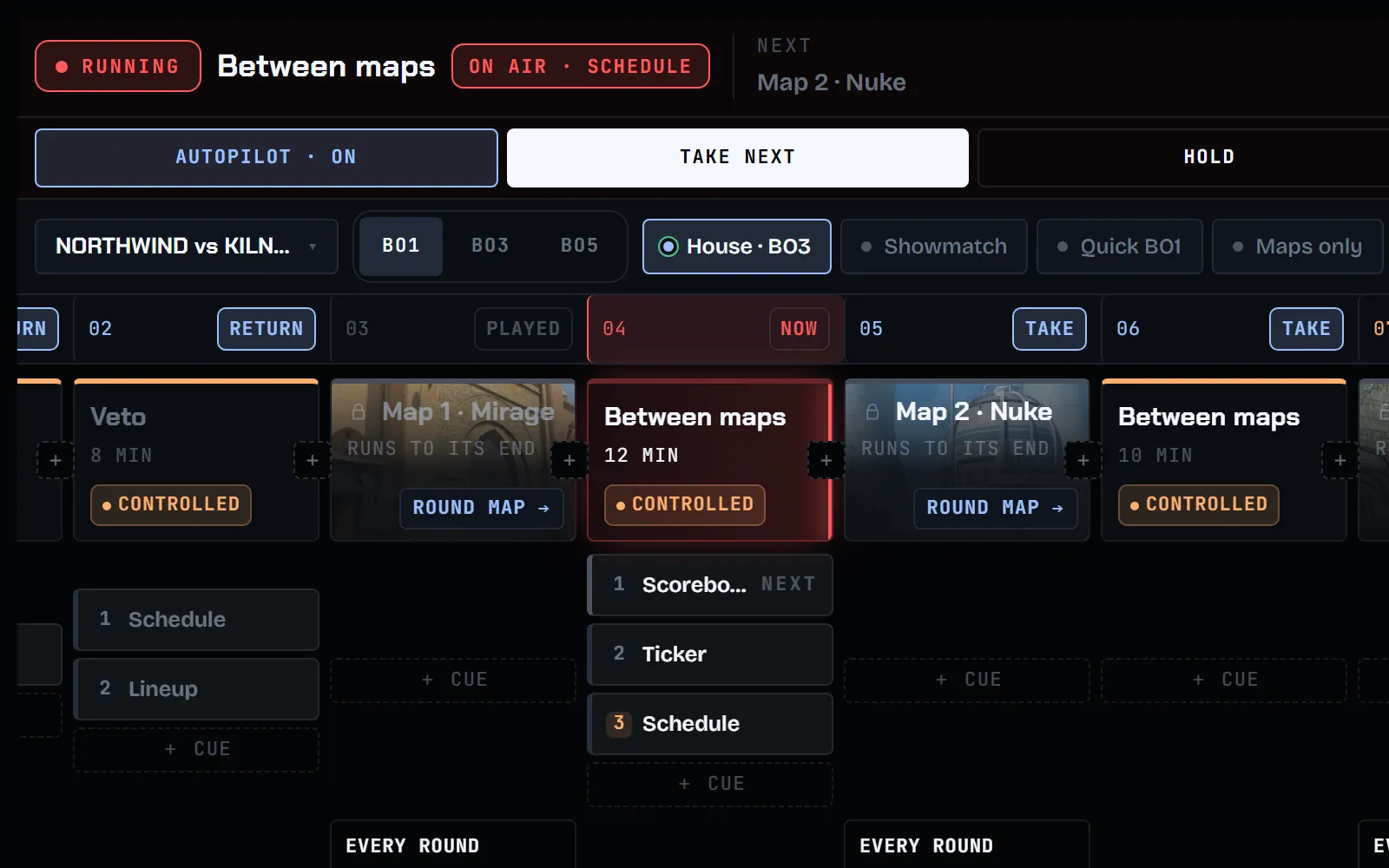
The strip at the top of the right column shows the current rundown stage and NEXT. Click it to open RUNDOWN.
-
In RUNDOWN, the order marks the current stage NOW, and NEXT names the one after it.
-
TAKE NEXT moves the show to the next stage now. HOLD keeps the current stage until you release it.
Autopilot and manual TAKE
- AUTOPILOT runs the rundown for you: titles and slides fire by themselves on round end and map end. Switch it ON or OFF at the top of the web panel, or with AUTOPILOT OFF / AUTOPILOT ON in the collector's top bar.
- A manual TAKE always wins over Autopilot's choice, and Autopilot holds back its own filler graphics for a while after it.
- Turning Autopilot off clears the scene, insert, replay and ticker that are on air. Your manual controls keep working either way.
Next: Run the map veto on air