
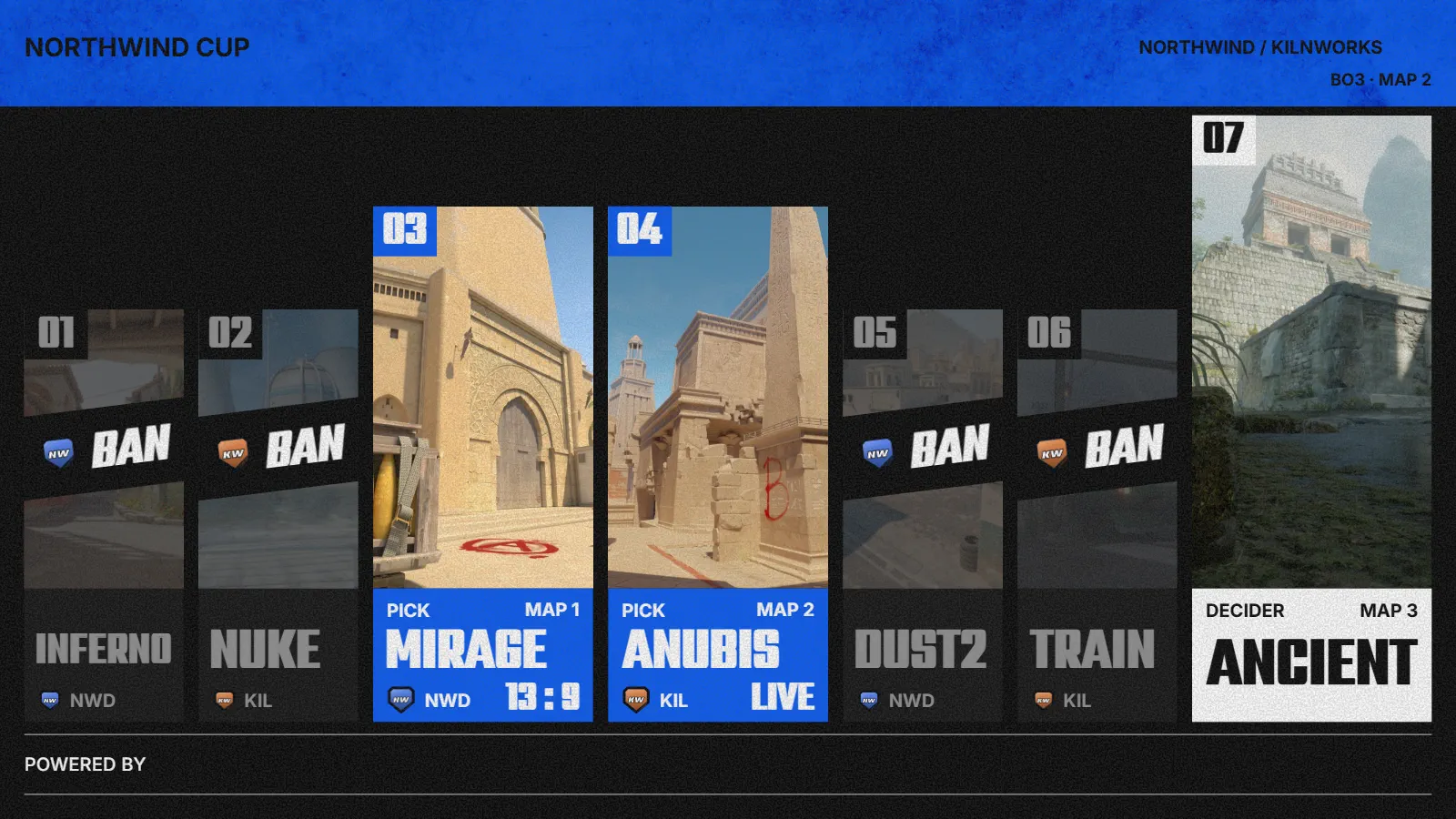
At the end of this guide, your match's map veto is entered step by step as it happens and shown on air, as a full-screen card and as a strip on the HUD.
Before you start
- A current match with both teams, and its Format (BO1, BO3 or BO5) set in the match details on the Board.
- The panel open for the event (Run the show: Preview, TAKE and rundown).
Set up the veto
-
On the web, open the operator panel. In MATCH CONTROL, choose the MAP VETO line (EDIT ›). When the panel warns Map veto not filled, OPEN MAP VETO goes to the same place.
-
In the collector, open Go Live, then the Setup tab and choose the separate Map veto tab. The editor opens there. On the web, the same tab is in Match setup.
-
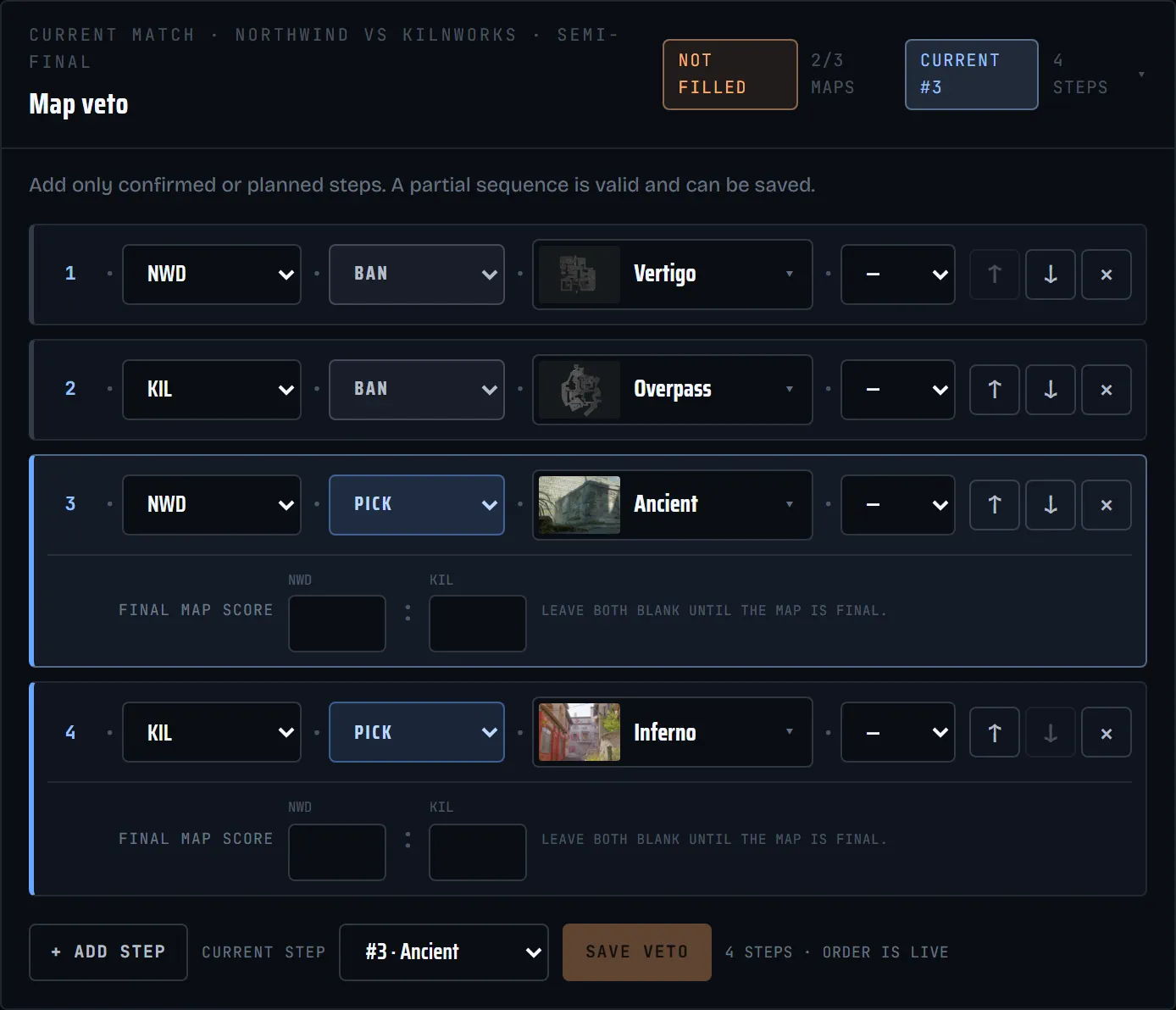
The card names the current match and shows how many maps are filled. A partial veto is fine: you can save it after every decision.
Enter picks and bans live
- Choose + ADD STEP for each decision.
- For each step, pick the team, the action (BAN, PICK or DECIDER), the map (Choose map) and, when it is known, the side: CT or T.
- Set CURRENT STEP to where the veto stands, then choose SAVE VETO.
- Picked maps and the decider get a FINAL MAP SCORE. Leave both fields blank: they fill in from the live data when the map ends.
Fetch the selected FACEIT BO1 map
- After applying a FACEIT import, the signed-in event owner can open the website Board → Sources and history → Map selection.
- This starts OFF, separately from start-time sync. Enable Automatically fetch map, select the FACEIT source if more than one is listed, and choose Save.
- Overhub checks the active linked BO1 about every two minutes and fills its map only when no selection has been entered. Manual selections, scores and rosters stay unchanged; this does not import a full BO3/BO5 veto.
- Last checked records a valid check; Map added records an actual fill. Turn the option off and save to stop checking.
Show it on air
-
In MATCH CONTROL, under SCENES, choose MAP VETO to put the full-screen veto card on air. The tile becomes available once the veto has at least one step.
-
Choose BACK TO GAME to take it off again.
-
With Autopilot on, the rundown's Veto stage puts the card on air for you.
-
The HUD also has a short veto strip above the radar at the start of rounds. Turn it on or off in OVERLAY EDITOR → OVERLAY ELEMENTS → Round-start veto strip. In a split OBS setup it belongs to HUD + inserts.
Correct a mistake
- Change the team, action, map or side of any step, move a step with ↑ and ↓, or remove it with ×. Then choose SAVE VETO.
- A veto card already on air keeps what it showed when it was taken. Choose BACK TO GAME, then take MAP VETO again to show the correction. The HUD strip updates by itself.