
At the end of this guide, OBS shows your event's live overlay above the gameplay, from one browser source or from a HUD and graphics pair.
Before you start
- OBS Studio 31 or newer, on the PC that outputs your stream.
- An event with live data from the collector: Sign in, pair this PC and choose an event.
- Your plan sets how many overlay connections can be open at once; Account → Billing → Usage shows it and whether it is enforced.
Copy the URL
-
On the web, open the event's operator panel. Under the live preview in MATCH CONTROL, the collector status comes first, followed by the OBS source picker.
-
Select ALL, then choose COPY URL for everything in one source. The picker changes which URL is copied; it does not change an existing OBS source.

-
In the collector, the same link is under OUTPUT in the dock: Output destinations → OBS Browser Source, choose the content, then Copy URL.
Add a 1920×1080 Browser source
- In OBS, add a Browser source to the scene that holds your gameplay capture.
- Paste the URL and set the width to 1920 and the height to 1080. The overlay is transparent, so place it above the gameplay and let it fill the canvas without cropping.
- Leave "Shutdown source when not visible" off, so the titles stay ready and the source stays connected.
One source or two
- ALL draws everything in one source: the match HUD, the inserts and the full-screen graphics.
- For separate layers, select HUD + INSERTS, copy its URL into one OBS Browser source, then select GRAPHICS and copy its URL into a second source. The first carries the match HUD and compact inserts; the second carries full-screen titles, stats and replay.
- Use ALL or the pair in a scene, never both: combining them draws the same content twice.
- Every OBS Browser source and every open preview counts as one overlay connection, so the pair counts as two. Billing shows the total as Physical overlay connections, and Overlay connections under the panel's sources counts this preview too.
Keep the link private
-
The overlay link only shows graphics: it cannot change your show. Anyone who has it can still open your overlay, and every open copy uses one of your overlay connections. Give it only to whoever runs OBS.
-
If the link leaks, replace it. On the Dashboard, choose the event's gear, then Regenerate link under EVENT LINKS, and confirm. The old link stops at once: paste the new one into every OBS source.
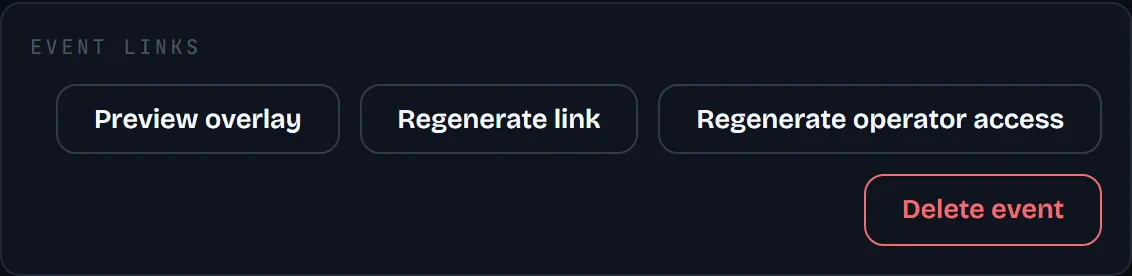
Regenerate operator access is a different button: it does not change the overlay link.
Test before air
- In MATCH CONTROL, check the Live overlay preview. TEST DATA fills the preview with sample data while no match is live; it never reaches OBS.
- Above the OBS source picker, the collector row (which may show the PC name) should say "Receiving CS2 data". Expand it for details. If it is waiting, start the collector and CS2 on the observer PC and choose this event. Run OBS on the collector PC to show replays.
- Choose Open overlay ↗ to see the real overlay in a browser tab, and compare it with OBS.
- Off air, take one title and watch it appear in OBS (Run the show: Preview, TAKE and rundown).