
At the end of this guide, you know how collector seats are counted, how to free one from another PC, and where to find your plan and usage.
Before you start
- Sign in at overhub.app with the account that owns your events.
- Your plan sets how many collectors can run at once; Account → Billing → Usage shows it and whether it is enforced.
What a collector seat is
- Each collector app that is open and signed in uses one seat, on any PC. Setting up an event never needs a seat; only live data does.
- Quitting the collector, choosing Sign out in it, or signing its session out on the web frees the seat at once.
- A collector that just disappears, for example when the PC loses power, frees its seat after about a minute, or after five minutes if it was sending live data, so it can come back.
No free collector seat and its three buttons
When your plan's seat limit is enforced and every seat is in use, the collector on the extra PC shows No free collector seat. It keeps working for setup, but "Live data from this PC is paused."
-
Keep open for setup closes the notice. You can keep preparing your event.
-
Manage sessions opens your account settings in the browser, where you free a seat.
-
Upgrade plan opens Billing.
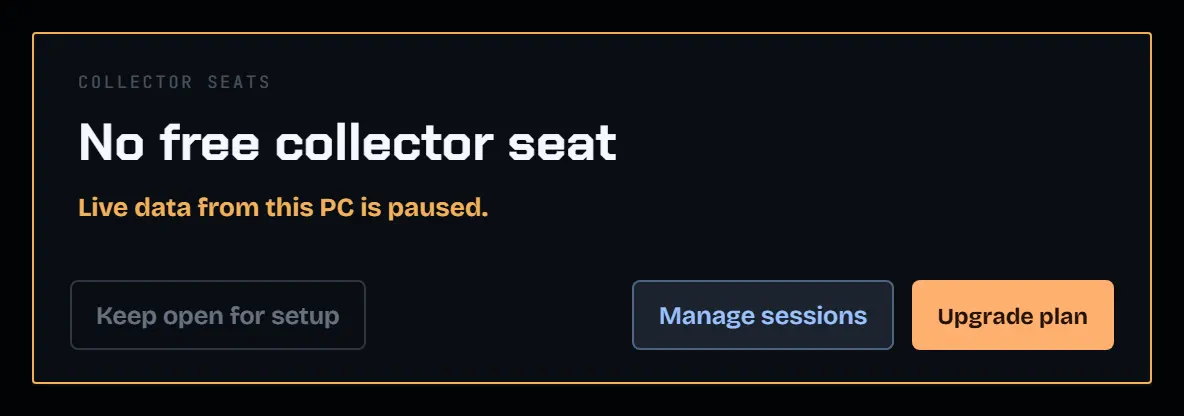
The notice closes by itself as soon as this PC gets a seat.
Free a seat in Account usage
-
On the web, open Settings under Account in the sidebar and go down to Account usage.
-
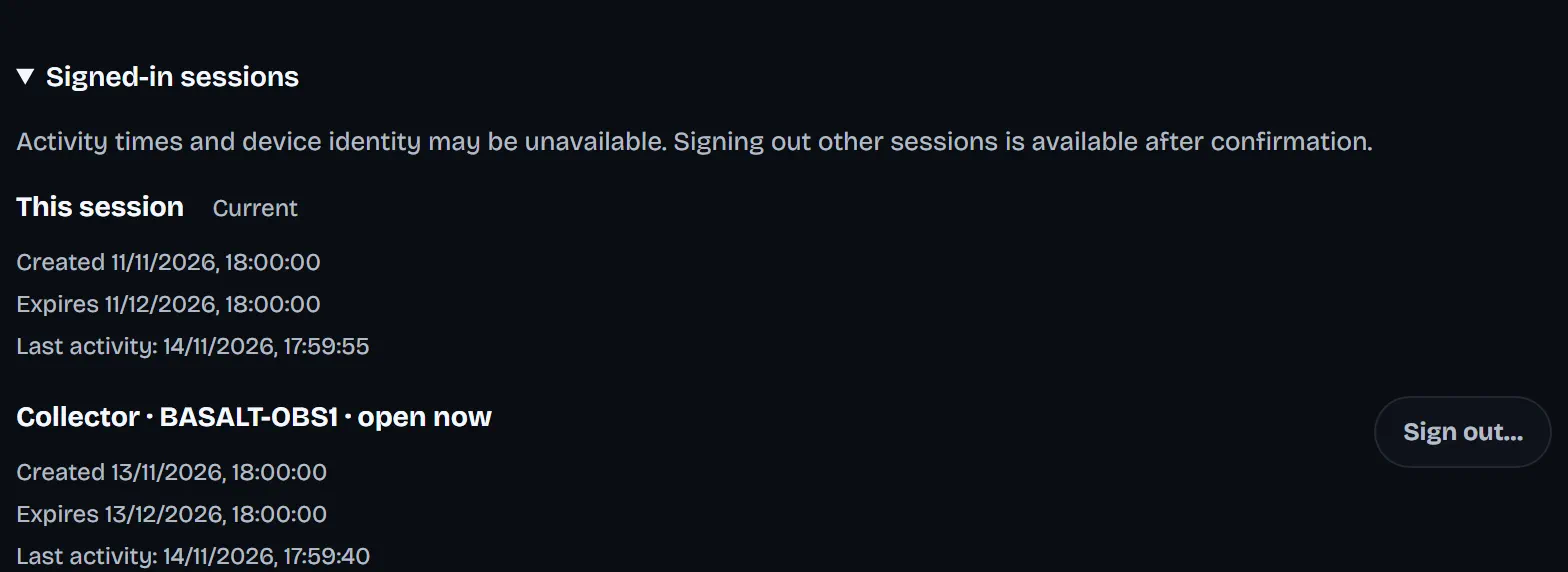
Open Signed-in sessions. A running collector shows as "Collector ·" followed by its PC name and "open now".
-
Choose Sign out… on that session, then Sign out session to confirm. Its collector seat is released.
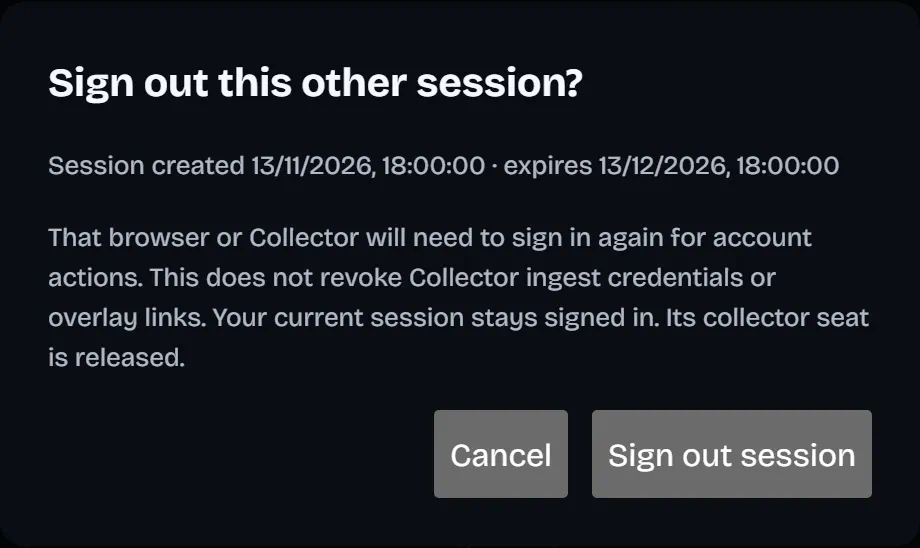
The waiting collector takes the free seat within about half a minute.
Show this PC's name
- In the collector, open the profile button at the top right. Under This PC, Show this PC's name on the site is on by default.
- While it is on, Account usage shows the Windows computer name next to the seat, so you can tell your PCs apart. Only you see it.
- Turn it off to send no name. The seat then shows without a PC name.
Plan and usage in Billing
-
Open Billing in the sidebar, or choose Upgrade plan in the collector.
-
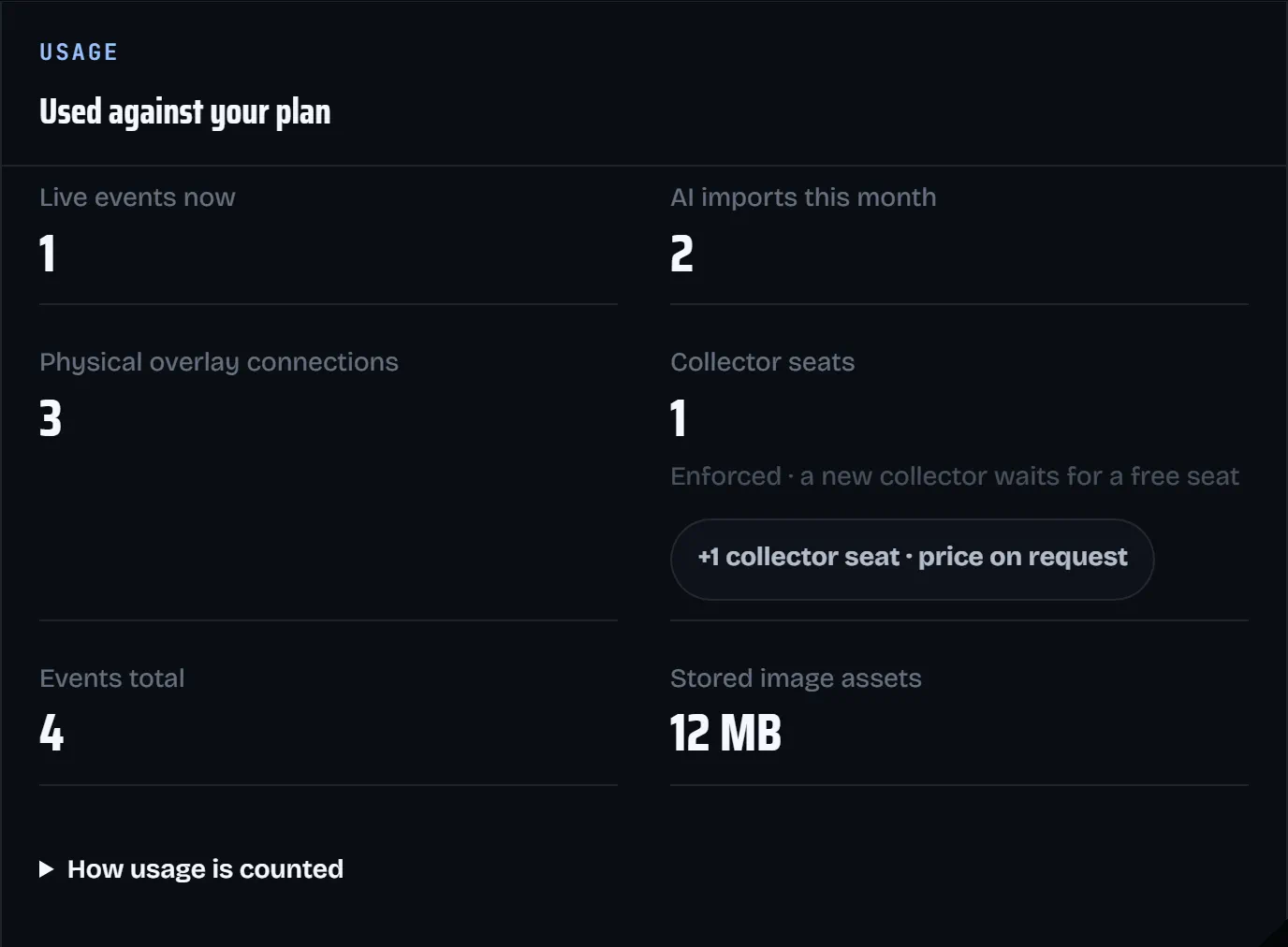
Used against your plan lists Live events now, AI imports this month, Physical overlay connections, Collector seats, Events total and Stored image assets. Collector seats also says whether its limit is enforced.
-
Need one more seat? +1 collector seat · price on request starts a support message about it.
-
When Manage billing is available, it opens the billing portal for payment details, invoices and cancellation. A paid plan alone does not mean the portal is configured. If the action is missing, unavailable or fails to open, contact support using the details below.
What to send support
Four details make diagnosis faster.
- Where it happened: Collector, Setup, operator panel, overlay, OBS, or a connected tool.
- What you expected: The action you took and the result you needed on air.
- What you saw: The exact message, visible state, and local time with timezone.
- Useful context: Event name, Collector version, browser, and a redacted screenshot when relevant.
Use Message us at overhub.app/support/ or write to [email protected].
Never send passwords, one-time codes, API keys, OAuth authorization codes, session cookies, or ingest, operator, and overlay tokens. We do not need them to investigate a support request.