
At the end of this guide, this PC is paired with your Overhub account, it reopens already signed in, and it sends live CS2 data to the event you picked.
Before you start
- The collector is installed: Install the collector and connect CS2.
- An Overhub account. If you do not have one yet, choose Create an account on the collector's sign-in screen.
- Each collector that is open and signed in uses one collector seat. Your plan sets how many can run at once; Account → Billing → Usage shows it and whether it is enforced.
Continue in browser
-
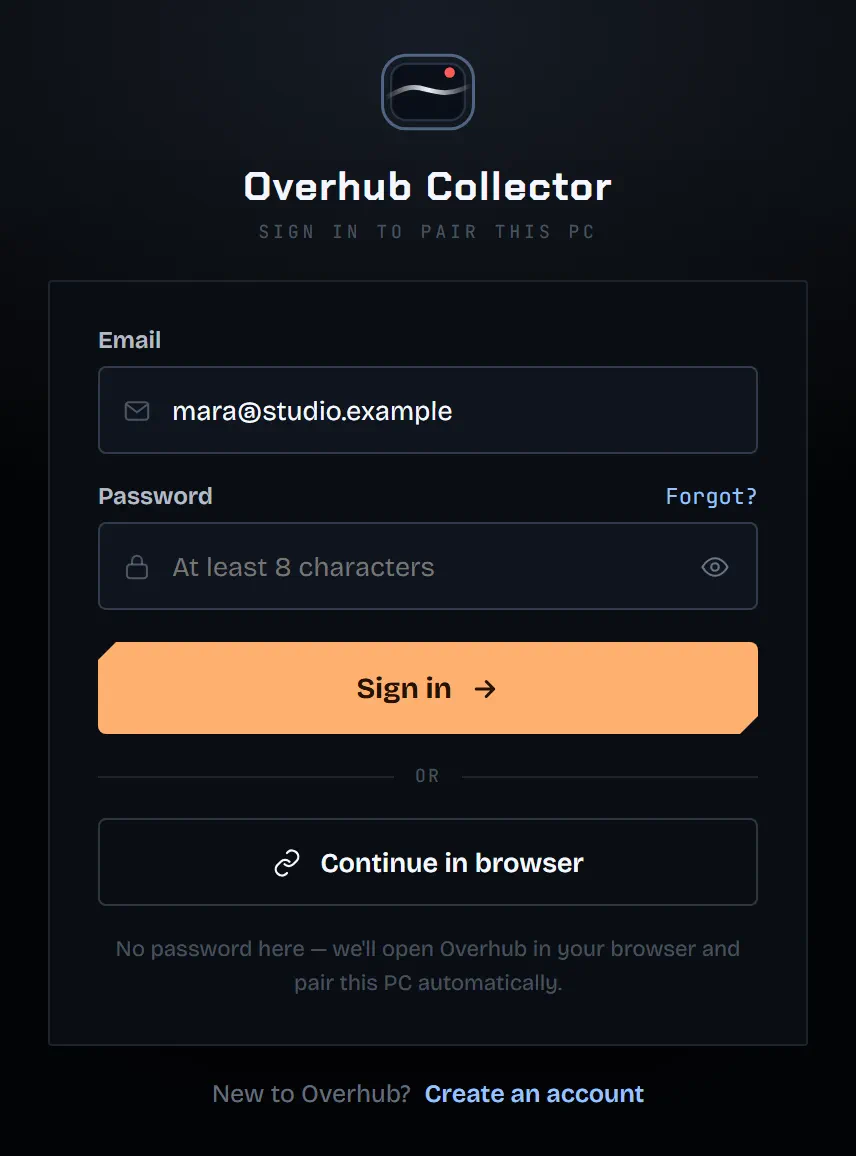
On the collector's sign-in screen, choose Continue in browser. You never type your password into the collector this way.
-
Your browser opens on Overhub. The collector shows Waiting for browser approval… with a pairing code and a countdown. Keep it open.
-
If no browser tab appeared, choose Open browser again.
Approve in the browser
-
If the page asks you to sign in, choose Sign In. It brings you back to the approval afterwards.
-
Check that you started this request on your own PC, then choose Approve this device.
-
The page says Collector approved. Go back to the collector: it finishes signing in by itself.
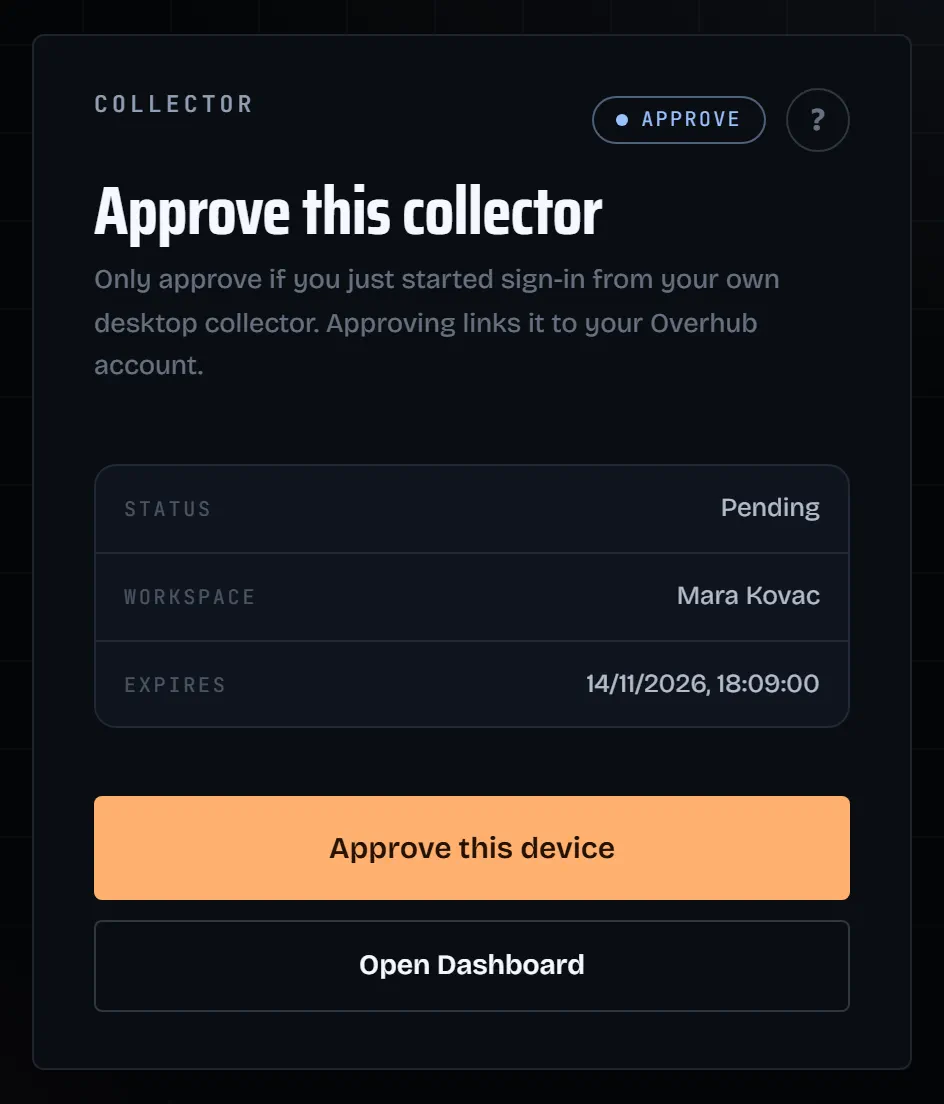
An approval link works once and expires after a few minutes. If it says Approval expired, start again from the collector.
Session restore and Re-pair PC
- The collector keeps its session on this PC. Next time you open it, it is already signed in, with the event you used last.
- To pair this PC again, for example with another account, open the profile button at the top right and choose Re-pair PC. The same browser approval runs.
- If the session ends, for example after you sign it out on the web, the sign-in screen comes back. Choose Continue in browser again.
Choose the event
-
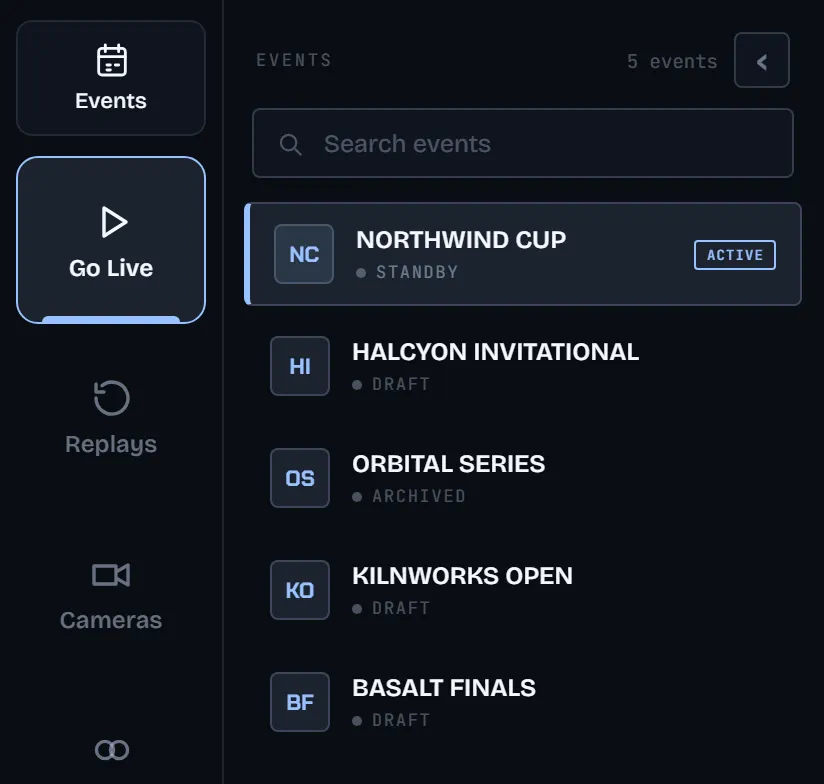
Open Events in the left rail. It lists the events your account owns, newest first.
-
Click the event you are producing. Its name moves to the top bar. If your account has only one event, the collector selects it for you.
-
No event yet? Choose + Create event at the bottom of the list (Create your first event).
Data starts on its own
There is no start button. As soon as this PC is signed in and an event is selected, the collector listens for CS2 and sends its data to that event.
-
Start CS2 and load a match.
-
Watch the top bar. DATA LIVE with a running timer means Overhub has acknowledged recent game data. It does not prove that OBS shows it.

-
To stop sending, close the collector or choose Sign out in the profile menu. Picking another event sends the data there instead.
-
If the collector shows No free collector seat, see Collector seats, sessions and billing.
Next: Create your first event