
At the end of this guide, your event has its matches with times, in a bracket you generated or built by hand, and a public bracket link to share.
Before you start
- At least two teams on the Board (Teams, players and photos on the Board).
- The event's time zone, set in Edit event (Create your first event).
- Your plan sets how many matches one event can hold. When a generated bracket would go past it, the generator's preview says so before anything is created.
Add one match
- On the Board, choose Add to event, then New match.
- Pick the Home team and the Away team and the Format: BO1, BO3 or BO5.
- Optionally, add a Round caption such as "Grand Final" and a Scheduled time (in your own time zone).
- Choose Create match.
Generate a bracket
-
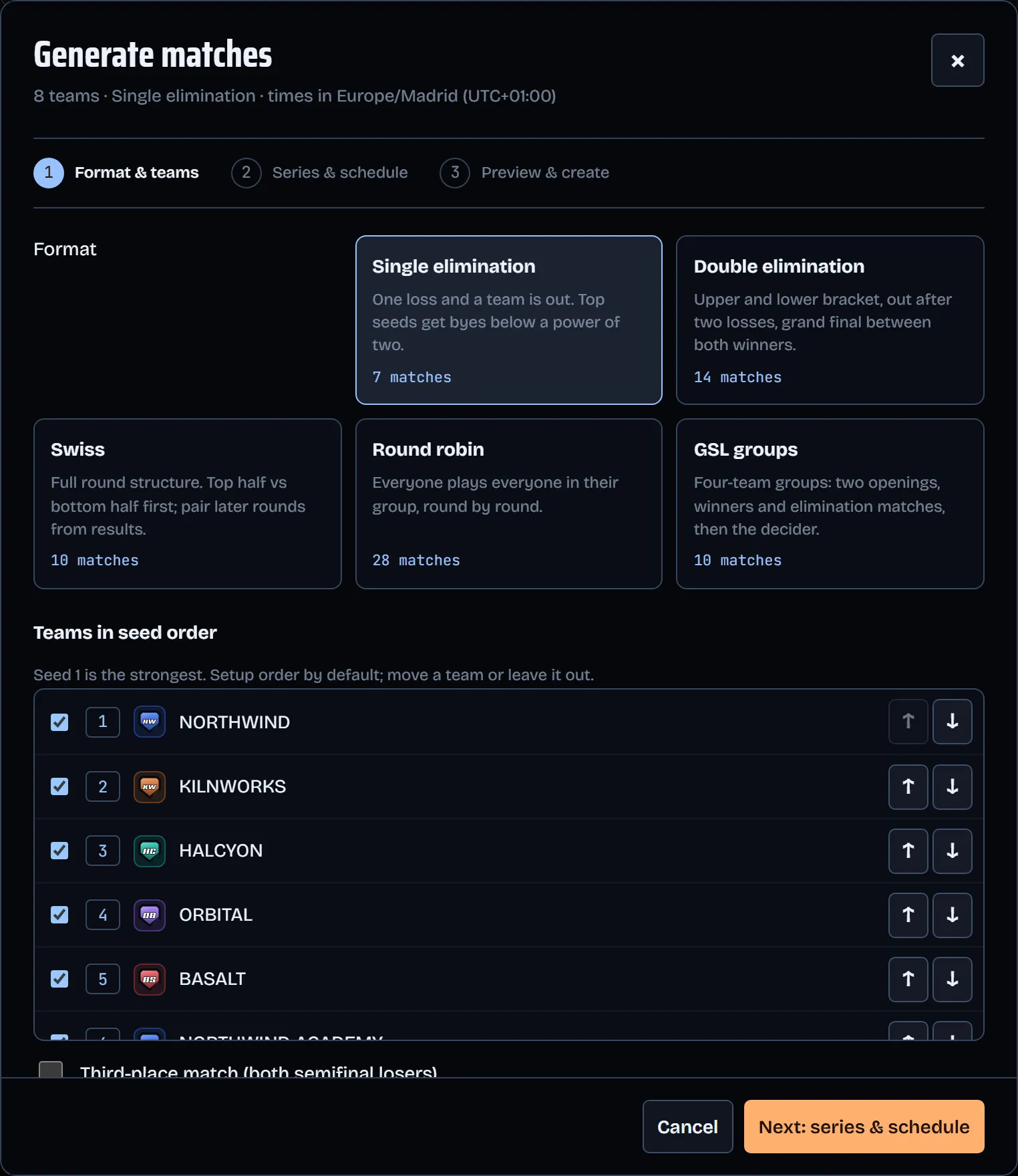
Choose Add to event, then Generate matches….
-
Format & teams: pick Single elimination, Double elimination, Swiss, Round robin or GSL groups. Then put the teams in seed order (seed 1 is the strongest) or untick a team to leave it out. Each format shows how many matches it makes.
-
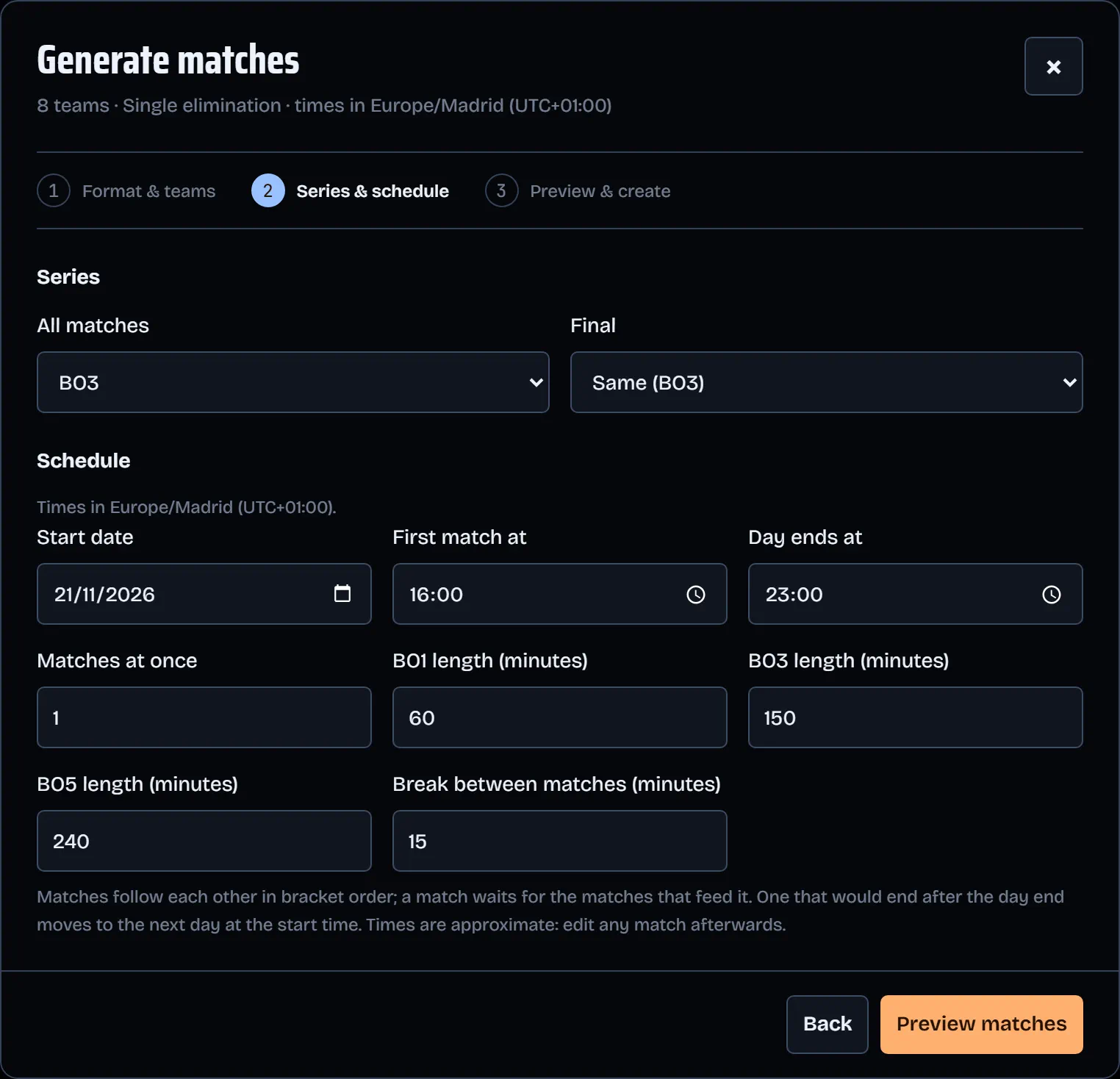
Choose Next: series & schedule. Set the series for all matches and for the final, then the schedule below.
-
Choose Preview matches. The preview lists the new matches day by day, with anything to check first. The last button names the count, for example "Create 7 matches", and adds them with every winner and loser link.
Schedule across days
-
In Series & schedule, set the Start date, First match at, Day ends at and Matches at once, plus the match length and the break between matches.
-
Matches follow each other in bracket order. A match that would end after Day ends at moves to the next day at the start time.
-
Times use the event's time zone, shown at the top of the dialog. They are approximate: open any match later to move it.
Keep FACEIT start times up to date
- After applying a FACEIT import, the signed-in event owner can open the website Board → Sources and history → FACEIT · Start-time sync → Schedule-sync settings.
- Sync starts OFF. To opt in, tick Enable start-time sync, choose the Current FACEIT import source, then choose Save settings. No source is switched automatically. To stop it, untick the option and save.
- Automatic sync checks start times only for eligible, already-linked scheduled matches. It does not create matches, make a match LIVE, or update results, rosters or vetoes. Active, started or scored matches are not changed; checks pause while the event is live or archived. Manual schedule conflicts need review rather than being silently overwritten.
- Expand FACEIT · Start-time sync to distinguish Last successful sync from Last attempt. An attempt is not proof that a change was applied. Refresh from FACEIT remains a separate review-and-apply workflow.
In Match Context, open Import & sync to see the source and its automatic-sync status. Manage sync opens that FACEIT source on the owner's Board; Review updates opens the HLTV source, marked Manual only. Last applied import, Last successful schedule sync and Last schedule attempt describe separate actions. Last valid map check and Map added describe the optional BO1 map watch. Last-known information is not current. Opening the Board does not enable sync or apply an import.
Pair the next Swiss round
-
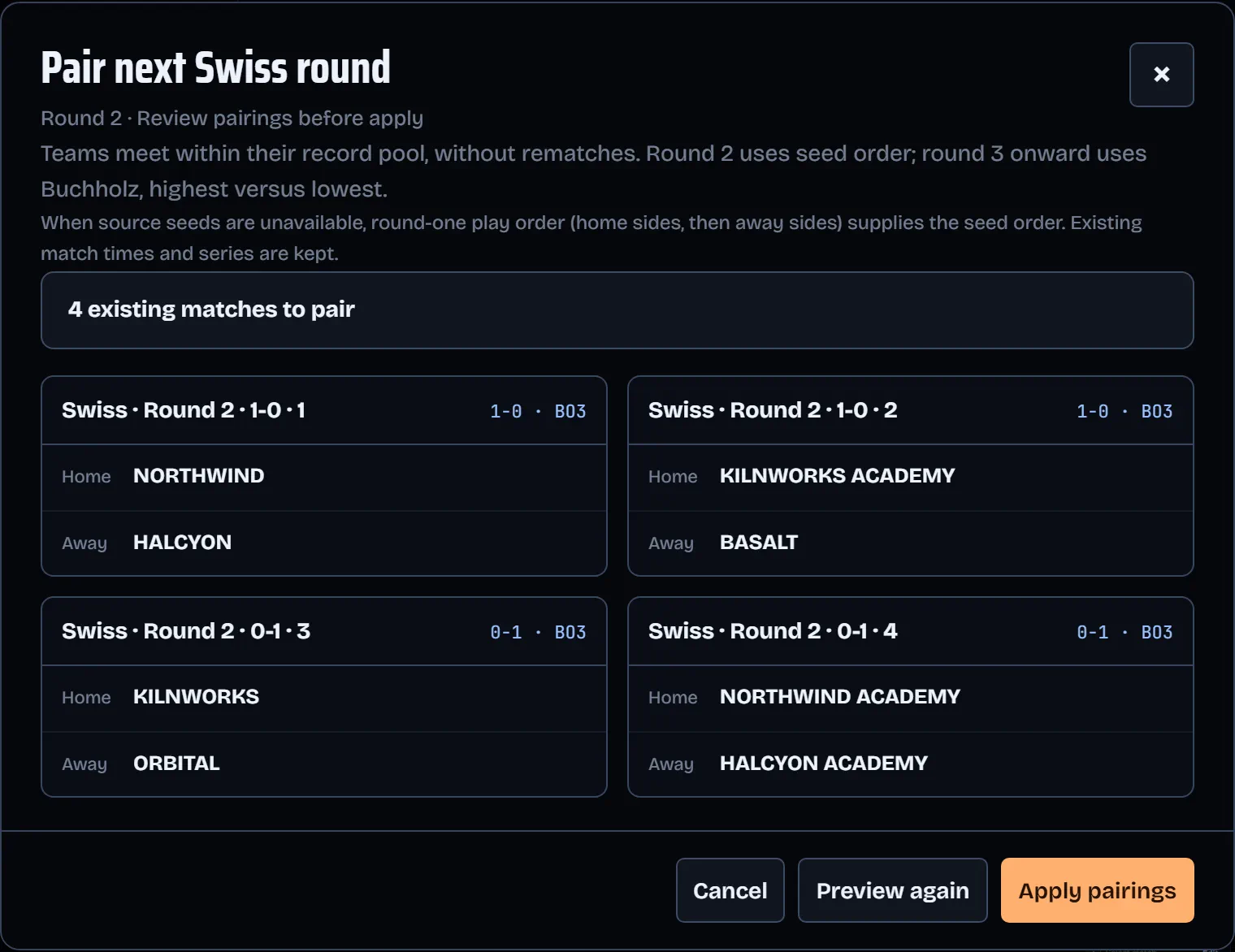
When every match of a Swiss round has its result, choose Add to event, then Pair next Swiss round.
-
Choose Preview pairings. Teams meet within their record pool, without rematches.
-
Check the pairs, then choose Apply pairings.
Results come from the live match (the collector, or the score in the operator panel) or from an import; the Board itself never edits scores.
Share the public bracket
-
Choose Share bracket in the Board header. The button says Link copied.
-
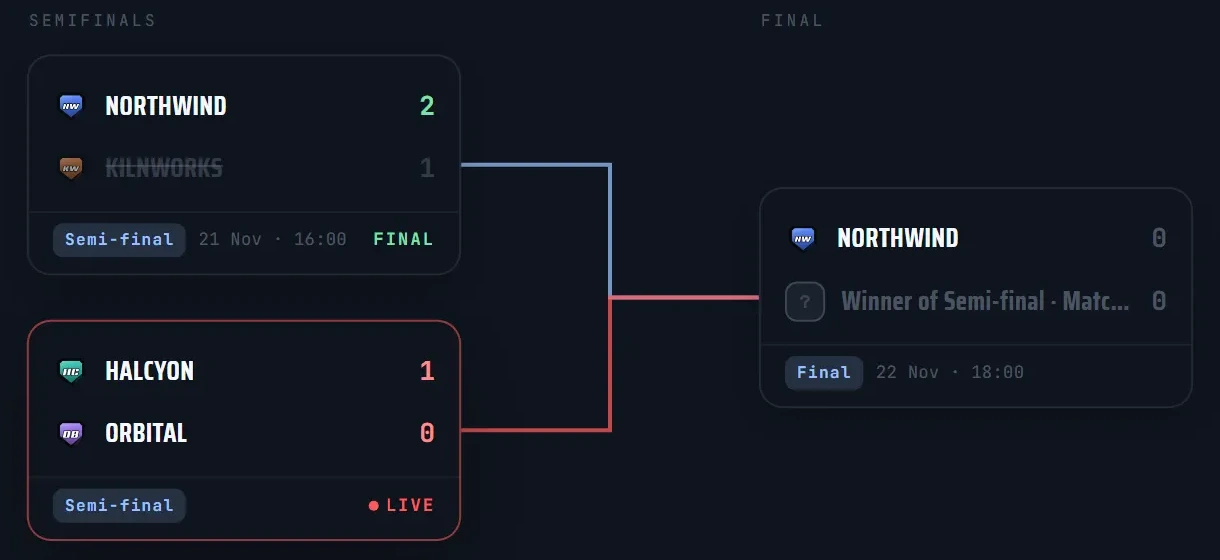
Anyone with the link sees the bracket without signing in. Scores and winners update live, and times show in the event's time zone.
-
The link stays the same. Integrations lists it as Public bracket page, with COPY URL.
Next: Add the overlay to OBS