
At the end of this guide, you have an event that holds your teams, matches, overlay link and graphics, with its dates and time zone set.
Before you start
- An Overhub account, signed in on overhub.app or in the collector.
- Your plan sets how many events you can keep and how many can be live at once; Account → Billing → Usage shows both and whether they are enforced.
What an event holds
One event is one show or tournament. Everything you prepare lives inside it:
- its teams, players and matches, on the Board (Teams & matches);
- its look and sponsors (Branding & sponsors);
- its overlay link for OBS and its operator panel, created for you with the event (Integrations);
- its camera room (Cameras).
Create on the web or in the collector
-
On the web, choose New Event in the sidebar. On a new account, the Dashboard also offers Create your first event. In the event chooser, the same action reads + NEW EVENT.

-
In the collector, open Events and choose + Create event at the bottom of the list. The same form opens inside the collector.
Name, dates and stream link
-
Type the Event name. It is the only required field.
-
Under Schedule & stream, set Starts and Ends if you know them.
-
Add the Stream link now if you have one: it is set when you create the event.
-
Choose Create Event. "Your event starts as a draft." On the web, the event's Board opens next. In the collector, the new event is selected and its Board opens in Setup.
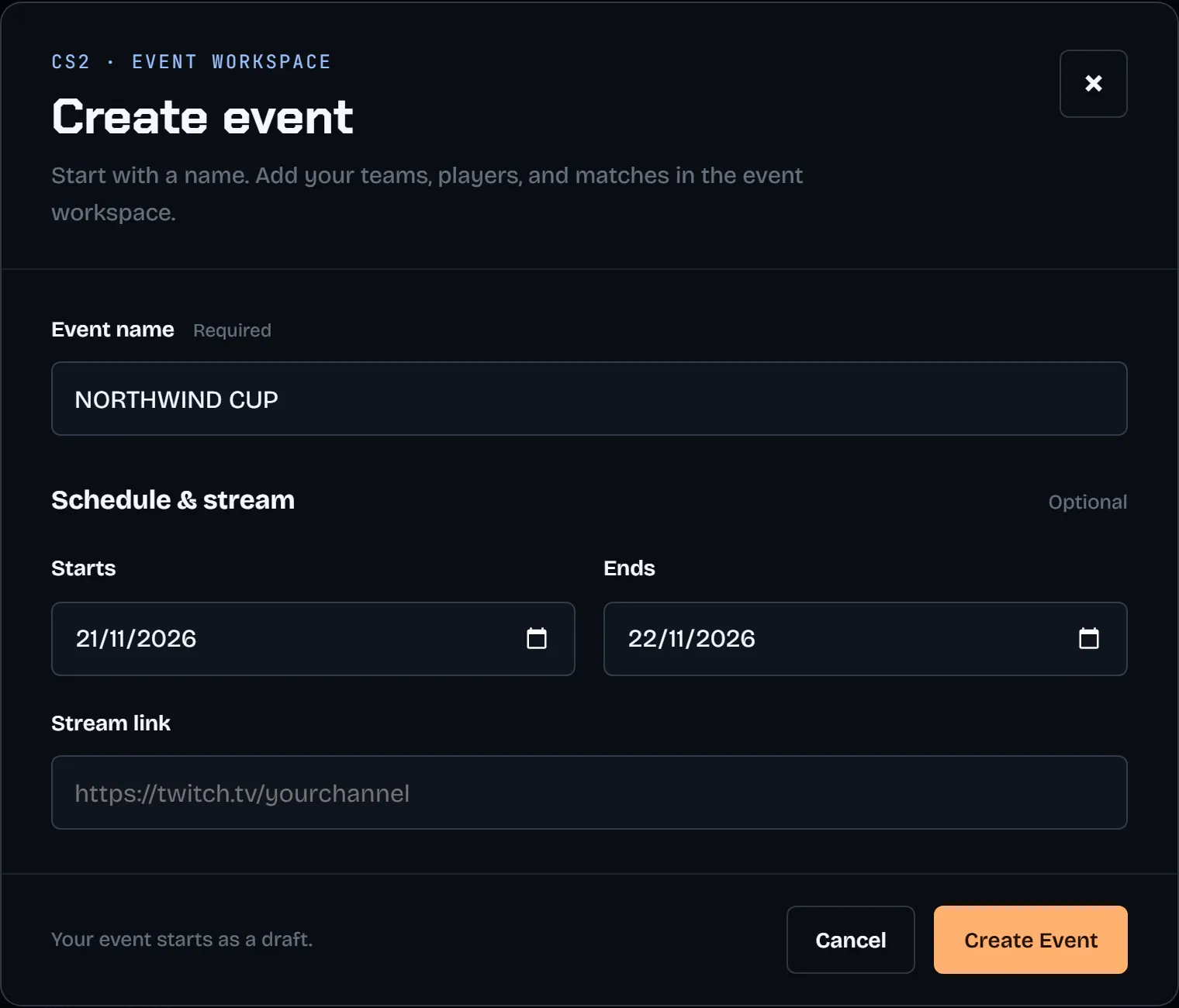
On the web, Paste a FACEIT or HLTV link (optional) can stay blank. If you add a supported link, the Board prepares an import preview after Create Event. Review it first: no teams, players or matches from the link are saved until you choose APPLY. See Import teams and players.
Set the time zone
Generated match times and the public bracket use the event's time zone, so set it before you schedule anything.
-
On the web, open the event's Board and choose the pencil next to its name (Edit event). The pencil on the event's row in Events opens the same panel.
-
In TIMEZONE, search for a city, zone or offset and pick it. If the event has none yet, Use your timezone fills in yours.
-
Choose SAVE.
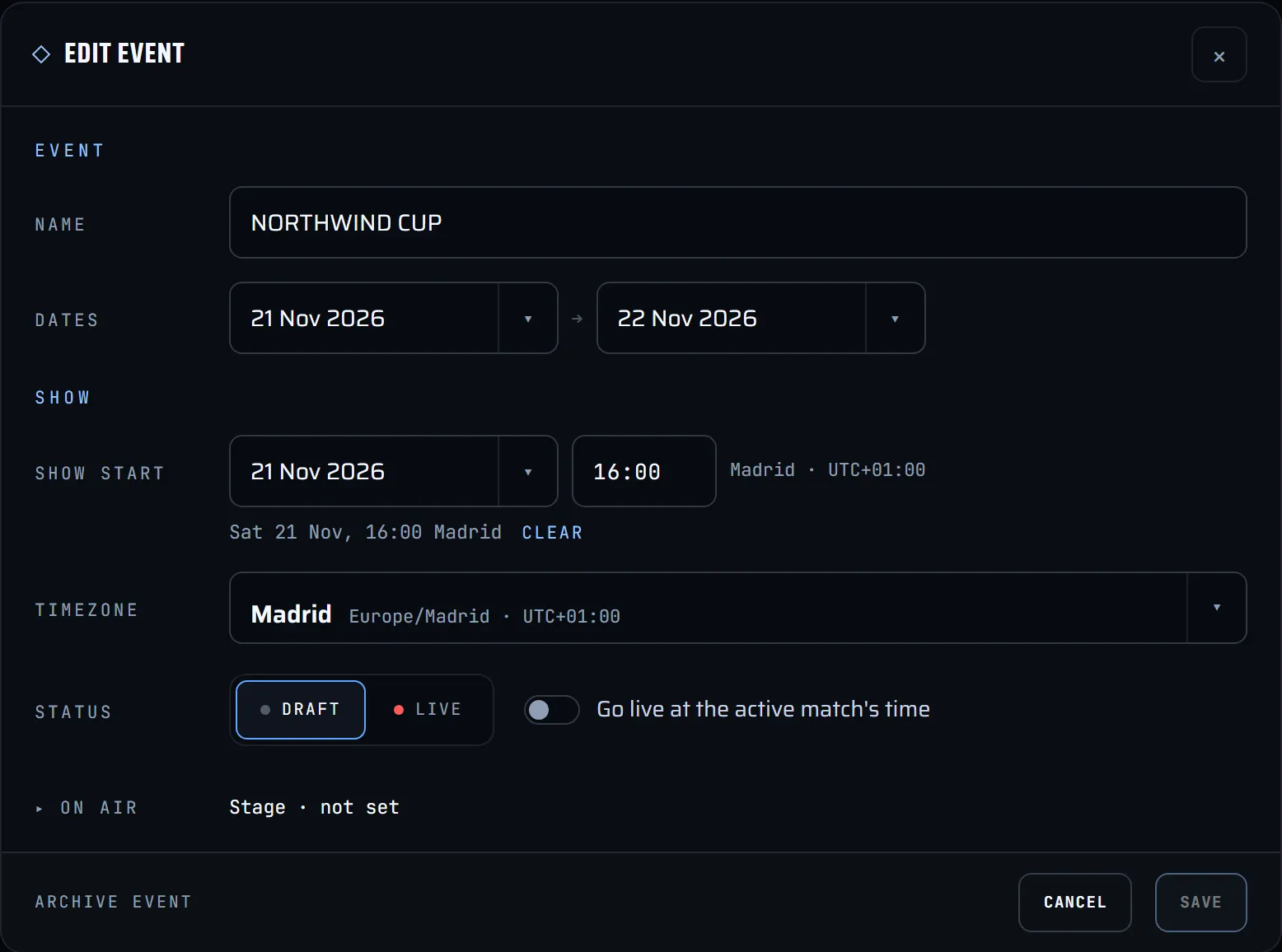
The same panel holds SHOW START and the event's status, DRAFT or LIVE.
Event limits on your plan
- New events start as drafts. An event goes live with Go Live on the Dashboard, or by itself at the active match's time while Go live at the active match's time is on in Edit event.
- Your plan sets how many events you can keep in total and how many can be live at the same time.
- When a show is over, choose Archive on the Dashboard. Archived events keep their matches and overlay config.
- Open Billing in the sidebar: Usage shows Live events now and Events total, and whether those limits are enforced.
Next: Import teams and players