
At the end of this guide, the Overhub collector runs on your production PC, knows where CS2 is installed and receives live match data from the game.
Before you start
- A Windows 10 or 11 PC (64-bit) with Counter-Strike 2 installed through Steam.
- An Overhub account. You sign in to download the collector, and the collector asks you to sign in before it shows anything else.
Download and install
-
Open overhub.app/download/, sign in and choose Download the installer.
-
Run the installer. It installs for your Windows user only, so it does not ask for administrator rights. Keep Overhub Collector (required) and the shortcuts ticked. Stream Deck plugin (optional) only matters if you use a Stream Deck.
-
Leave Launch Overhub Collector ticked and finish. The collector opens on its sign-in screen: choose Continue in browser and approve this PC. The next guide, Sign in, pair this PC and choose an event, shows each screen.
Let it find CS2
- The collector looks for CS2 in your Steam libraries by itself and checks again every few seconds. When Steam sits in a usual place, there is nothing to click.
- Open Go Live in the left rail. The health row at the top starts with CS2: green while the game runs, grey while it is installed but closed.
- If CS2 lives somewhere unusual, click CS2. Next to Installation not found, choose Locate folder and select the
Counter-Strike Global Offensivefolder.
Install the GSI config
CS2 sends live match data through Game State Integration (GSI): a small config file in the CS2 cfg folder. The collector writes it for you.
-
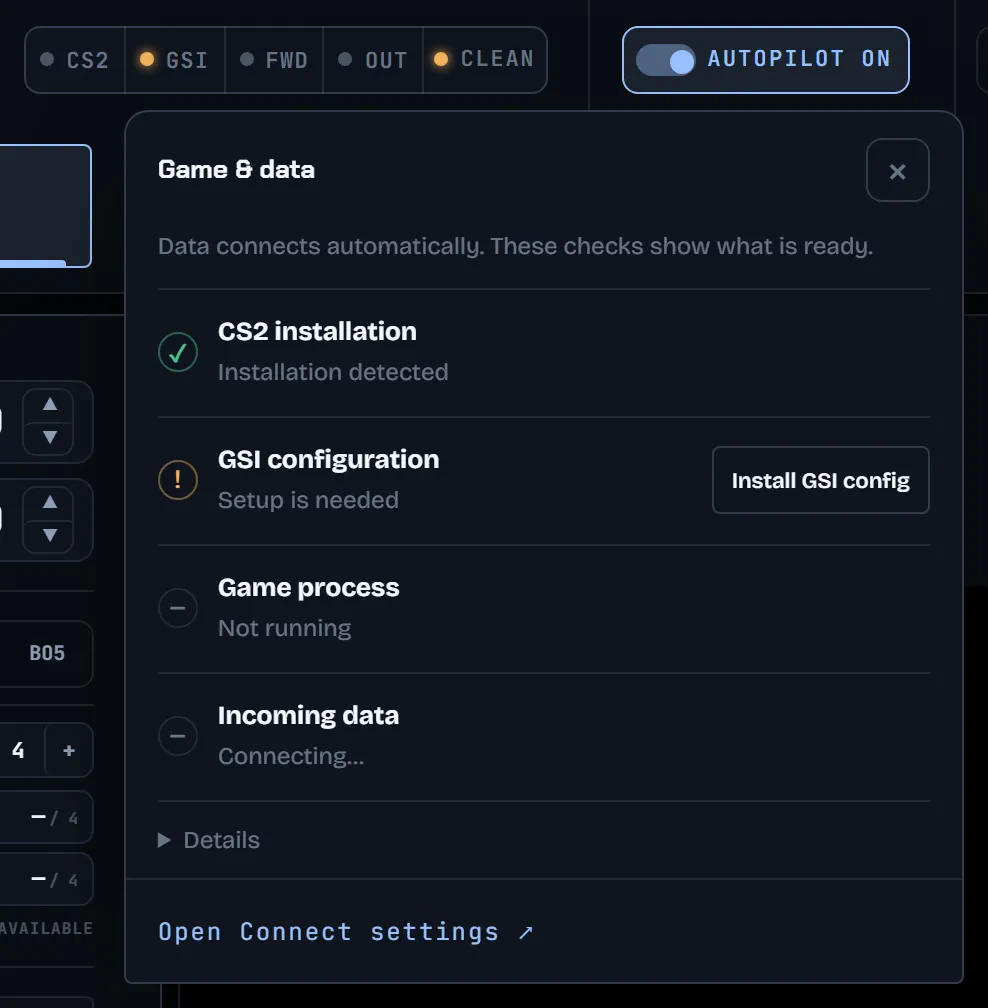
Click GSI in the health row. The Game & data panel opens.
-
If GSI configuration says Setup is needed, choose Install GSI config. If it says Configuration needs updating, choose Update GSI config.
-
Restart CS2. The collector confirms with "GSI config installed. Restart CS2 to load the new cfg." CS2 reads the file only when it starts.
The same buttons sit in the GSI row of the Connect page.
Check the health row
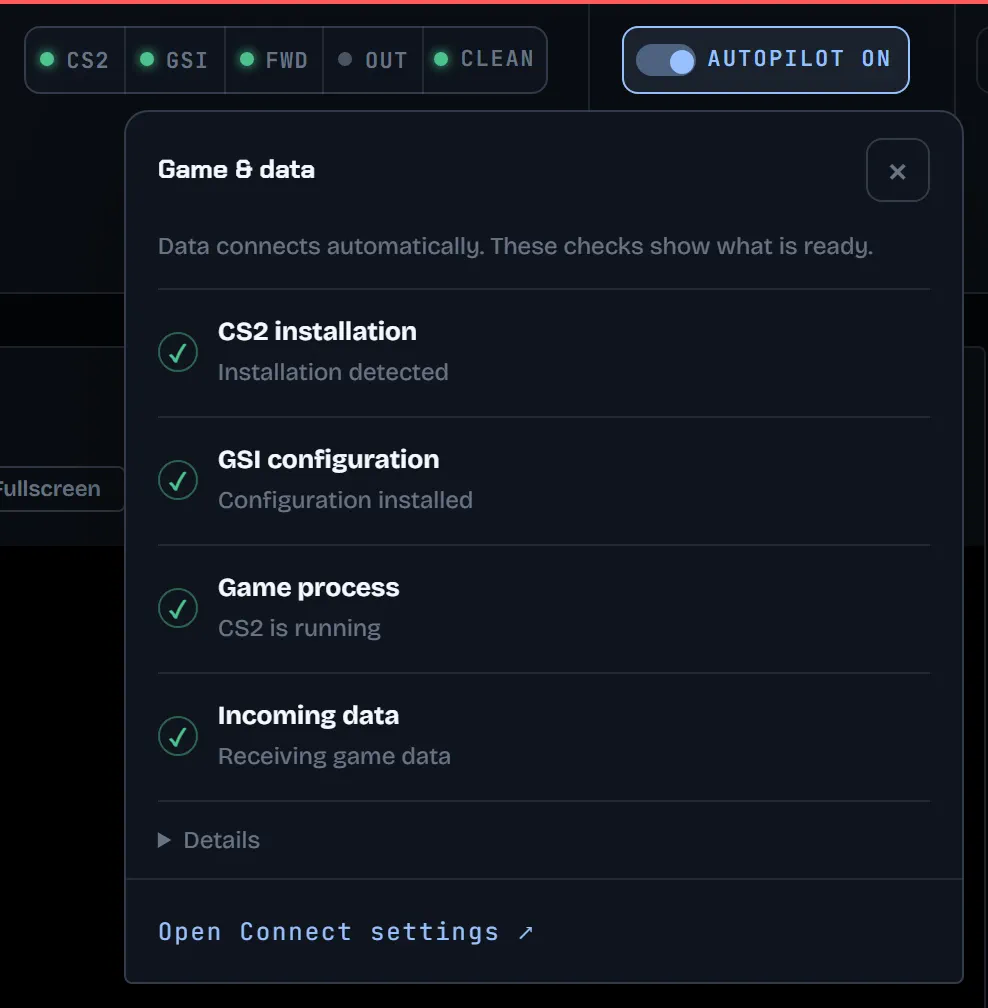
The health row reads from left to right: CS2, GSI, FWD (forwarding to Overhub) and OUT (the collector's own on-top overlay). A green dot means ready, amber needs attention, grey is waiting.
-
Select your event first (the next guide shows how). Live data always goes to one event.
-
Start CS2 and load a match.
-
Within a few seconds, GSI turns green with Receiving game data, FWD shows Delivery acknowledged and the top bar shows DATA LIVE with a timer. Every row of Game & data shows a tick.
-
OUT can stay grey. It turns green only when the on-top overlay is shown on this PC; OBS uses its own link (Add the overlay to OBS).