
At the end of this guide, your event's Board holds the teams, players and matches from your source, and you checked them before anything was saved.
Before you start
- An event (Create your first event).
- Your source: pasted text or a table, a file (xlsx, csv, tsv, json, txt, html, pdf or docx), a public web page, a FACEIT championship or match link, or an HLTV event page.
- Imports read with AI count against your plan's monthly AI imports; Account → Billing → Usage shows the count and whether it is enforced.
Open Import data
- Open the event's Board (Teams & matches).
- Choose Import data in the Board header. On an empty Board you can also paste or drop straight onto the canvas.
Paste text, a file or a tournament link
-
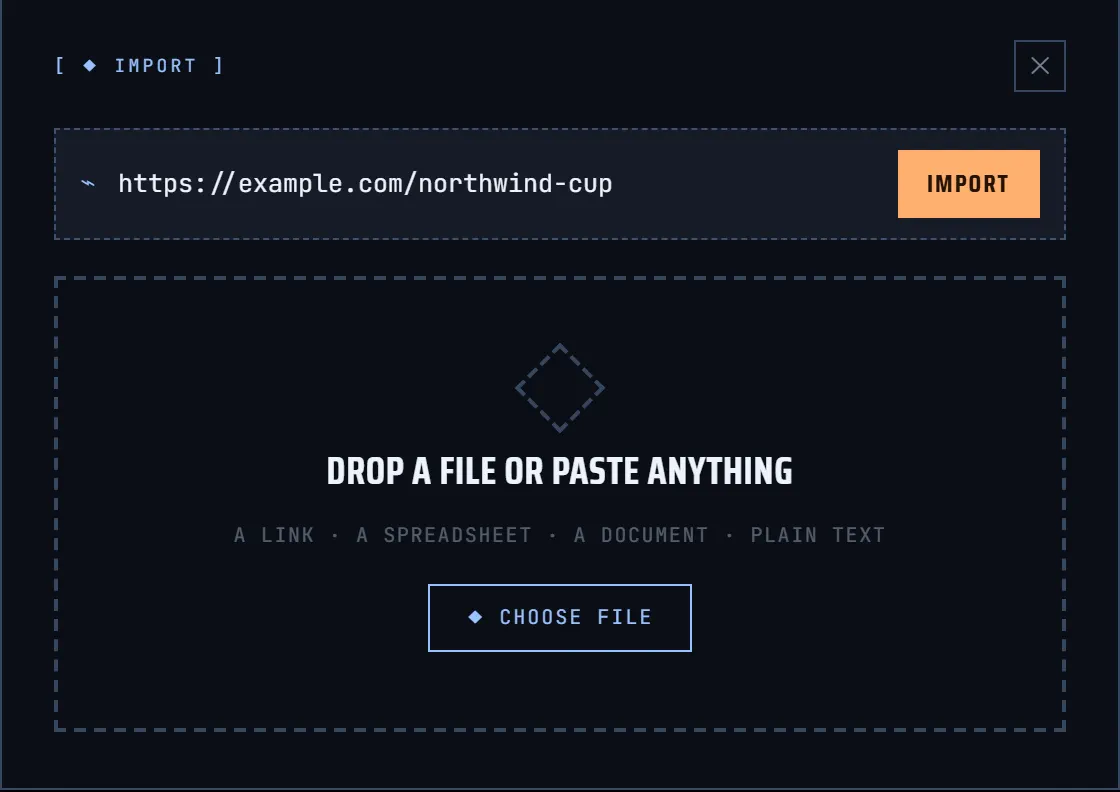
Paste a link or text into Paste a link… and choose IMPORT, or drop a file on DROP A FILE OR PASTE ANYTHING, or choose CHOOSE FILE.
-
Overhub reads the source. Clean tables and JSON, pasted or in a file, are read directly. Supported FACEIT championship and match links and HLTV event pages use their own importers, without AI. Other text, documents and public pages are read with AI.
-
While it works, the window shows READING SOURCE, EXTRACTING ENTITIES and MAPPING TO LIBRARY. Large pages can take up to a minute.
Review what was found
-
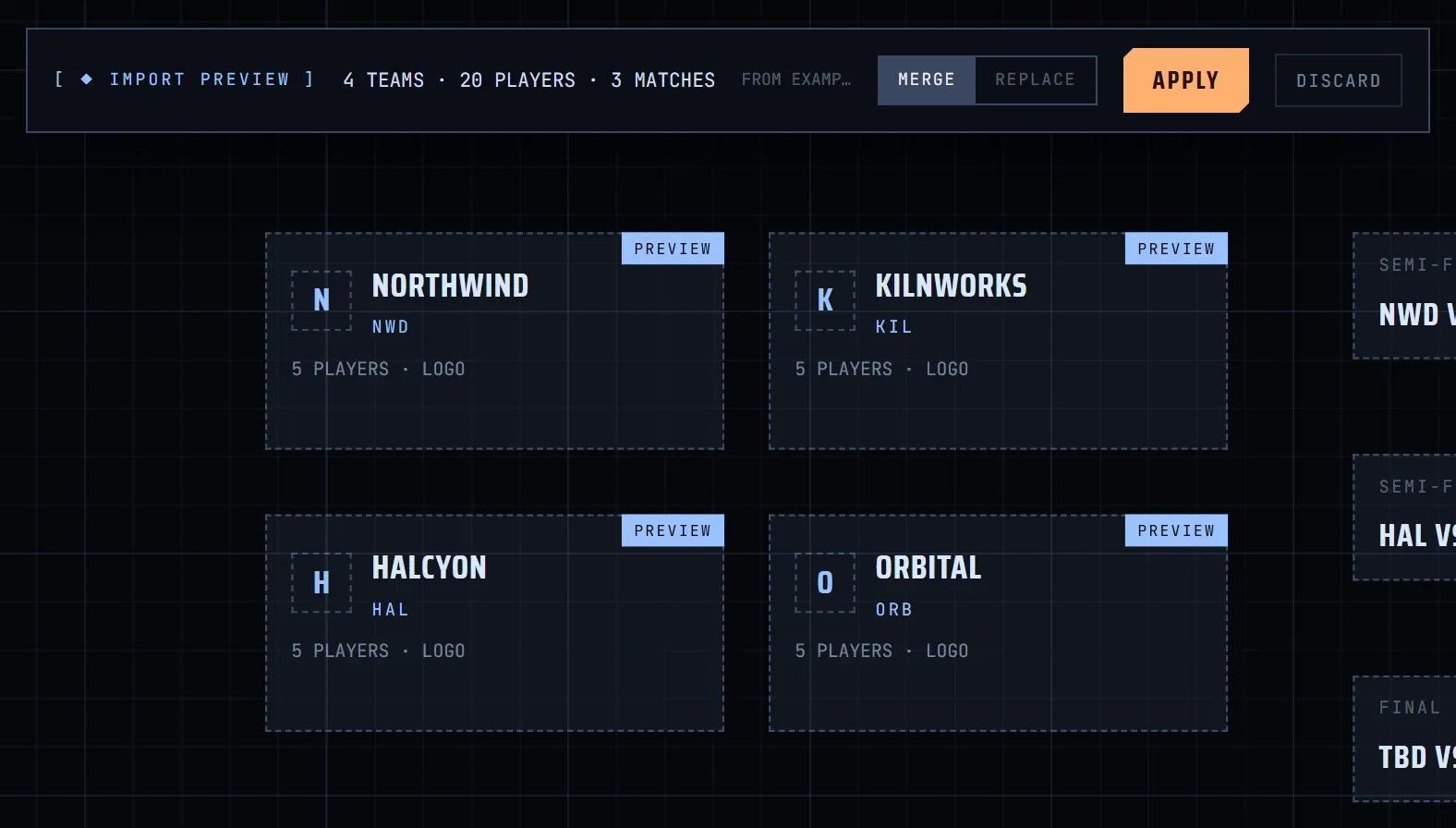
The Board shows the import as a preview: cards marked PREVIEW, and the IMPORT PREVIEW bar with the number of teams, players and matches found.
-
Check the names, logos, rosters and match pairs on the cards. A line such as "Still missing … — fill in later, nothing blocks Apply." lists gaps you can fill in later.
-
Choose how to apply: MERGE adds the import to what the Board already has; REPLACE swaps the event's teams for the imported set and removes the Board's earlier matches.
Apply to the event
- Choose APPLY. Nothing is saved before this; DISCARD drops the preview.
- With MERGE, teams are matched by name and players by Steam ID or nickname. Imported values fill in or replace yours, empty ones keep what you had, new teams and players are added, and matches already on the Board are not added twice.
- Applied teams are also saved to your team library, ready for the next event.
- After an HLTV import, logos, player photos and rosters keep loading for a while after you apply.
- Correct anything on the Board: Teams, players and photos on the Board.
Refresh a FACEIT import
On the event's Board, open Sources and history and choose Refresh from FACEIT on the current FACEIT source. Refresh opens a preview for review; it does not silently apply changes. Check the proposed changes before choosing APPLY, or choose DISCARD to leave the event unchanged. Ordinary MERGE keeps the matching rules described above; refresh of existing FACEIT matches uses their stored FACEIT identities, not names alone. Conflicting changes are kept for review, and refresh never changes the live match.
Automatic start-time sync is separate and starts OFF. Only the signed-in event owner can enable it on the website Board; see Matches, schedule and brackets. It does not automatically update results, rosters or vetoes.
AI imports and your plan
- Each import that is read with AI counts once against AI imports this month in Billing. An import that fails before the AI reads anything is not counted.
- Clean tables, JSON, supported FACEIT links and HLTV event pages are read without AI and do not count.
- Your plan sets the monthly number; Account → Billing → Usage shows it and whether it is enforced.